Connecting Gmail to ReferralPulse
Gmail is how most referrals first land in your day. A partner sends you an intro, a client gets forwarded your way, a CPA you met last quarter routes a question through email. ReferralPulse turns those messages into structured records so you don't have to retype them, and it does it without ever logging into your inbox.
The way that works today is forwarding. You set up a one-time filter in Gmail that forwards messages matching a short list of intro and referral keywords to a special address at ReferralPulse. Anything matching the filter is processed and turned into a partner, an introduction, or a referral on your dashboard. Anything not matching stays in your inbox and ReferralPulse never sees it.
A direct Gmail connection that authenticates with your Google account is on the roadmap. You'll see the Gmail card under Settings → Integrations → Email show as Connect (rather than the disabled state it shows today) when it ships. Until then, the forwarding setup below is the supported path.
The privacy promise
The forwarding-based approach is a deliberate design choice. Your inbox stays yours. ReferralPulse can only read messages your filter forwards to it. No mailbox API access, no thread reading, no contact scraping. If the filter doesn't match, the message never leaves your account.
Inside the auto-forward setup page, the same promise shows up as a banner at the top of the wizard:
We only read what you forward. ReferralPulse never has access to your inbox. Set up a filter that forwards only the emails matching the keywords below, and a copy stays in your inbox.
If you ever want to stop, deleting the Gmail filter ends the forwarding immediately. There's no token to revoke and no app to uninstall on Google's side.
What the assistant does with a forwarded email
Once a message arrives at your forwarding address, your assistant classifies it and acts.
Intro emails (subjects with intro, introduction, please meet, wanted to introduce, and similar phrasings) become introduction records. The two people being introduced get added to your network as partners if they aren't there already, and the introduction shows up on your Introductions page with the message as context.
Referral emails (subjects with referral, refer to you, client referral, and similar) become received referrals on your Referrals page, attributed to the partner who sent them and pre-filled with the client and context the assistant could pull from the body.
Anything the assistant isn't confident about gets surfaced for you to review rather than silently filed. You're the final say on what becomes a record.
Setting up forwarding in Gmail
Where to find it: Sidebar (gear icon) → Settings → during onboarding, the Build Out Your Network step also has a Set up email auto-forwarding card that opens the same wizard. Or go straight to Profile → Auto-forward setup at /dashboard/profile/auto-forward-setup.
The wizard has tabs for Gmail, Outlook 365, and Apple Mail / iCloud. Pick Gmail.
The four steps:
- In Gmail, click the gear icon → See all settings → Filters and Blocked Addresses → Create a new filter.
- In the Has the words field, paste the keyword rule shown in the wizard. It's a single line of OR-joined phrases that match intros and referrals.
- Click Create filter, then check Forward it to: and choose
docs@referralpulse.ai. If it isn't in the list yet, add it as a forwarding address first under Settings → Forwarding and POP/IMAP → Add a forwarding address. Gmail will email a confirmation to that address, and your assistant auto-approves it within 30 seconds so you can finish without copy-pasting a code. - Leave Skip the inbox unchecked. A copy of the message stays in your Gmail so your normal inbox flow isn't disrupted.
The wizard has a Copy button next to the keyword rule so you can paste it into Gmail without retyping.
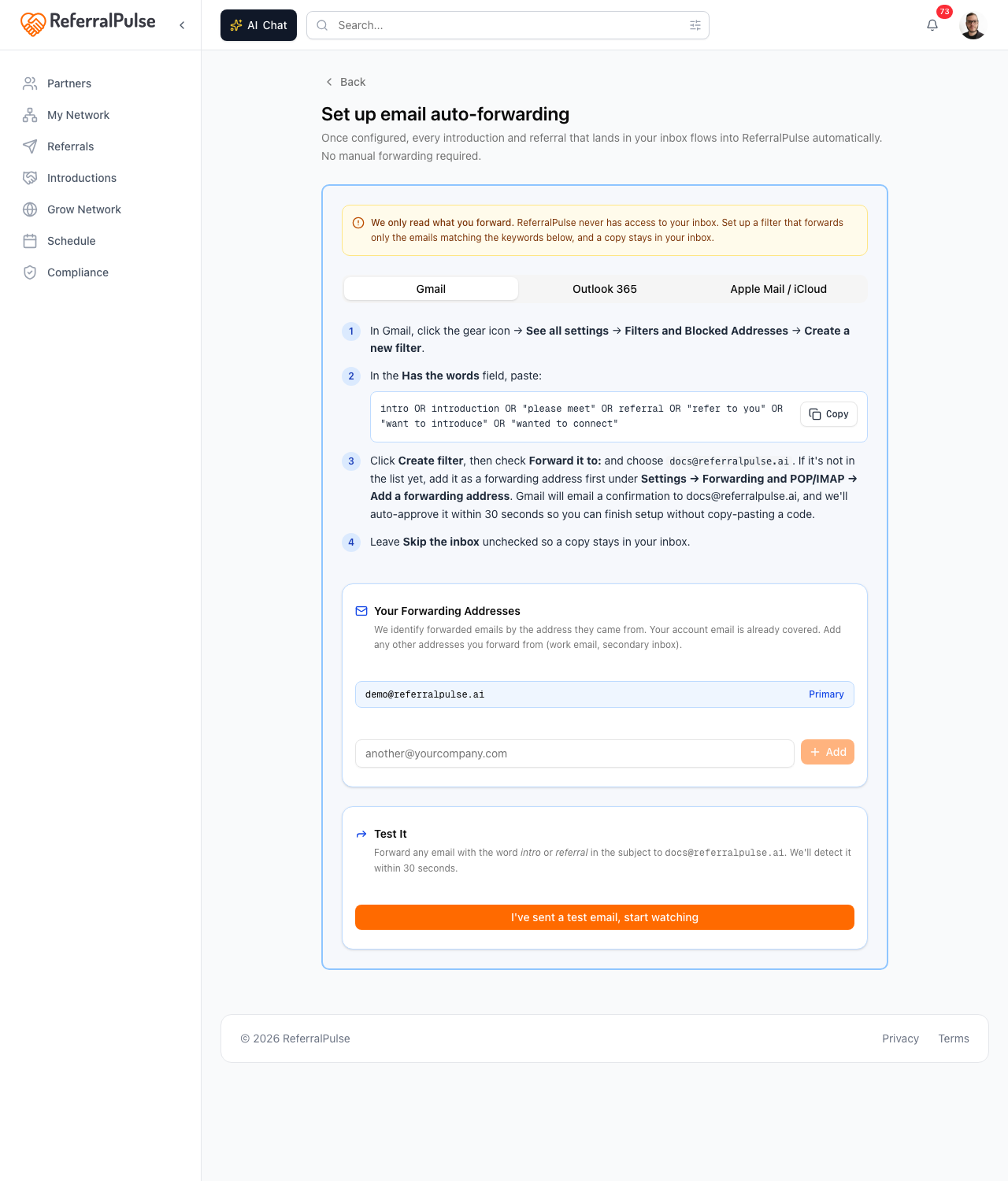
The keyword rule is conservative on purpose. It catches most of the phrasings people use for intros and referrals, but it misses a few unusual ones (like "looping in" or "connecting you with"). If you want to catch more, you can add to the rule in Gmail. The classifier on this side will only act on messages it recognizes; any forwarded message that doesn't classify as an intro or referral is dropped quietly.
Adding more forwarding addresses
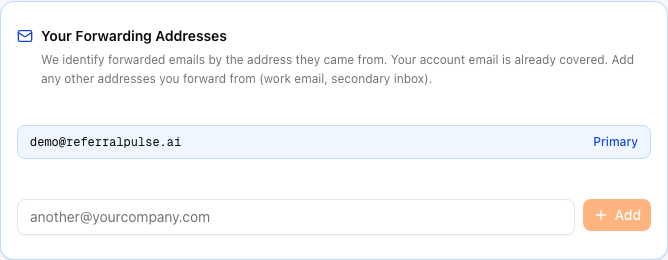
Your account email is recognized as a valid sender automatically. If you forward referrals from another address (a work email, a separate inbox, an alias), add it to your forwarding list so messages from that address are recognized.
In the wizard, scroll to the Your Forwarding Addresses card. The card shows your primary address tagged Primary, plus a list of any additional addresses you've added. Type a new address into the field and click Add. To remove an address, click the trash icon next to it.
Messages arriving at docs@referralpulse.ai from an address not on your list are ignored. This is what keeps a stranger from being able to inject a fake referral by guessing the forwarding address.
Testing it
Before you walk away, prove it's wired up. Forward any message with the word intro or referral in the subject to docs@referralpulse.ai. In the wizard, click I've sent a test email, start watching. The page polls for the next 90 seconds and confirms when the forward arrives, with the timestamp, the address it came from, and the subject line.
If nothing arrives in 90 seconds, double check that:
- The Gmail filter is saved (Gmail sometimes drops a filter if you click away from the create dialog without confirming).
- The forwarding address
docs@referralpulse.aiis verified in Gmail → Settings → Forwarding and POP/IMAP. If Gmail shows it as pending, the auto-approval may have been rate limited. Resending the verification fixes it. - The address you forwarded from is on your forwarding list, or it's the same as your account email.
The test pings expire after 90 seconds, but real forwards keep working forever. If you hit the timeout because of a Gmail-side delay, just send another test once the filter is confirmed. There's no penalty for retrying.
What about Outlook and Apple Mail?
The same wizard has tabs for Outlook 365 and Apple Mail / iCloud, with the right filter steps for each. The forwarding address (docs@referralpulse.ai), the privacy promise, and the keyword rule are the same. iCloud server rules and Outlook 365 server rules forward server-side, so the filter still runs when your Mac is closed; Mac Mail rules only run while the app is open, so for always-on forwarding the iCloud web rule is the better choice.
On the iOS app
Forwarding setup needs the web app, since Gmail's filter editor isn't available on iPhone. Once forwarding is set up, the inbox-to-record flow works regardless of which device you use to read or send email. A referral that lands in Gmail at 9am while you're driving shows up on your Referrals page by the time you check the iOS app at the next stop.
If you ask your assistant by voice "did anyone send me a referral this morning," it can read the day's received referrals straight from your account, including the ones that came in by forwarded email. You don't have to scroll your inbox to know what's new.