Your schedule and tasks
The Schedule page is your single view of every partner meeting and every follow-up task on your calendar. Meetings are pulled from your connected calendar (only the ones with partners on them), tasks come from anywhere in the app where you've created one, and both render side by side so you can plan your week without flipping between tabs.
If you want to focus on tasks alone (cleared, ranked by priority, with their full details), there's a separate Tasks page that does exactly that.
Methods
Browse your schedule
Where to find it: Sidebar → Schedule.
The Schedule page opens in Week view by default on desktop and Agenda view on mobile. Across the top you have the view switcher (Month, Week, Day, Agenda), filter chips for Meetings, Tasks, and Show completed, and date-navigation arrows on the right. Below that is a search field that filters by partner name, client name, or meeting title.
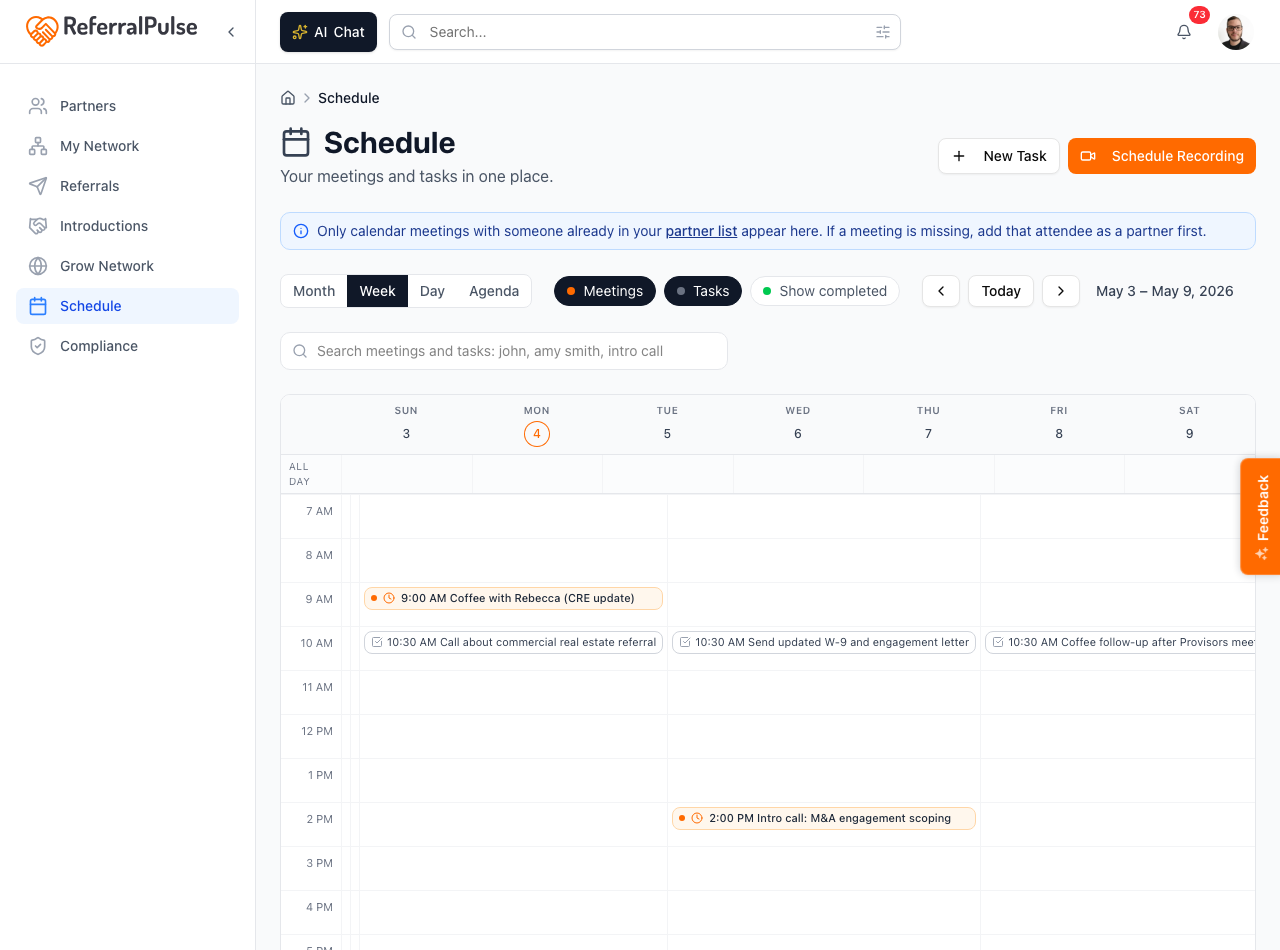
The four views are:
- Month. A grid of the whole month. Each day cell shows a count of meetings and tasks. Click a day to drill into that day's view.
- Week. A seven-column grid for the current week. Best for planning the week ahead.
- Day. A single-day timeline. Best for the morning view.
- Agenda. A scrollable list of the next thirty days, in chronological order. Best on mobile and best when you just want to see what's coming up next.
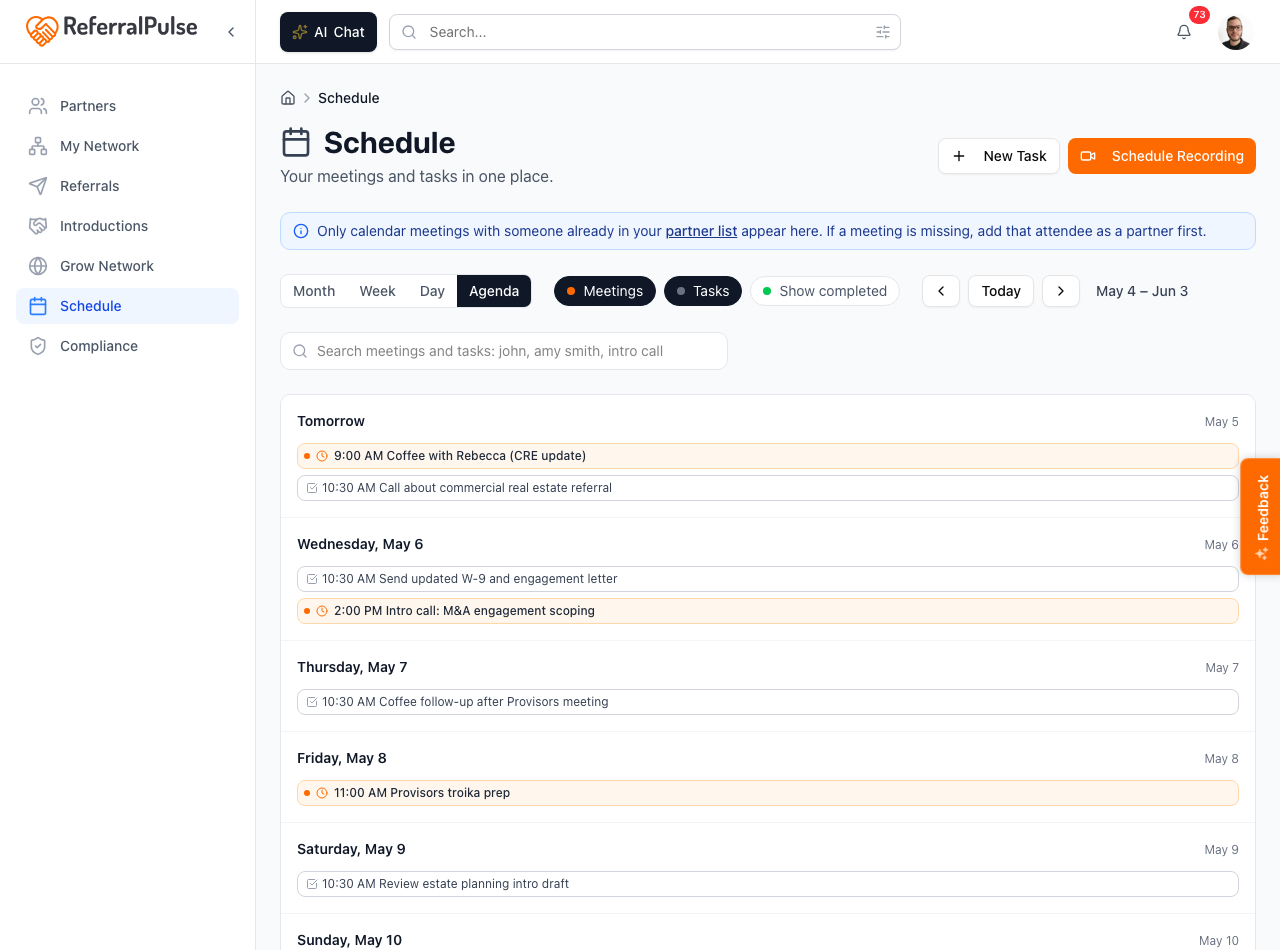
Only calendar meetings with someone already in your partner list show up here. If a meeting is missing, the most likely reason is that the other attendee isn't a partner yet. Add the partner first, then refresh the page.
Create a new task
Where to find it: Sidebar → Schedule → New Task button (top right of the page). Also reachable from any partner page, any referral page, and from the action items extracted from a meeting recording.
Tasks are how you track follow-ups. Each task can be linked to a partner, a referral, or a meeting, so when you complete it the activity flows back to the right place. The dialog asks for a title, an optional description, a priority (low, medium, high, urgent), an optional due date, and an optional partner / referral / meeting to link it to.
Tasks created from action items in a recorded meeting are automatically linked to that meeting and the partner. Open the meeting page, click Add as task on any action item, and the task appears here with the link already in place. You don't have to retype it.
Schedule a meeting recording
Where to find it: Sidebar → Schedule → Schedule Recording button (top right of the page).
For meetings that aren't on your calendar yet (an ad-hoc Zoom you set up over text, a meeting where the calendar invite went to the wrong account), use Schedule Recording. The dialog asks for the meeting URL, the start time, and the partner on the call, then schedules the recording bot to join. See Meeting recordings and notes for the full walkthrough.
Manage your tasks
Where to find it: Top right avatar → Actions is the AI-suggested email queue, NOT this page. The full Tasks page lives at /dashboard/tasks (no sidebar entry; reach it directly or from the New Task dialog's success toast).
If you want to clear tasks without the calendar around them, the Tasks page is the place. The header shows a count of active tasks and a New Task button. Below that, four filter tabs let you slice the list:
- All. Every task, completed or not.
- Pending. Tasks that aren't done yet.
- Completed. Tasks you've checked off.
- Urgent. Tasks with priority set to urgent.
Each row has the title, the linked partner / referral / meeting, the priority badge, and the due date. Click the checkbox to mark a task complete. Click the trash icon to delete.
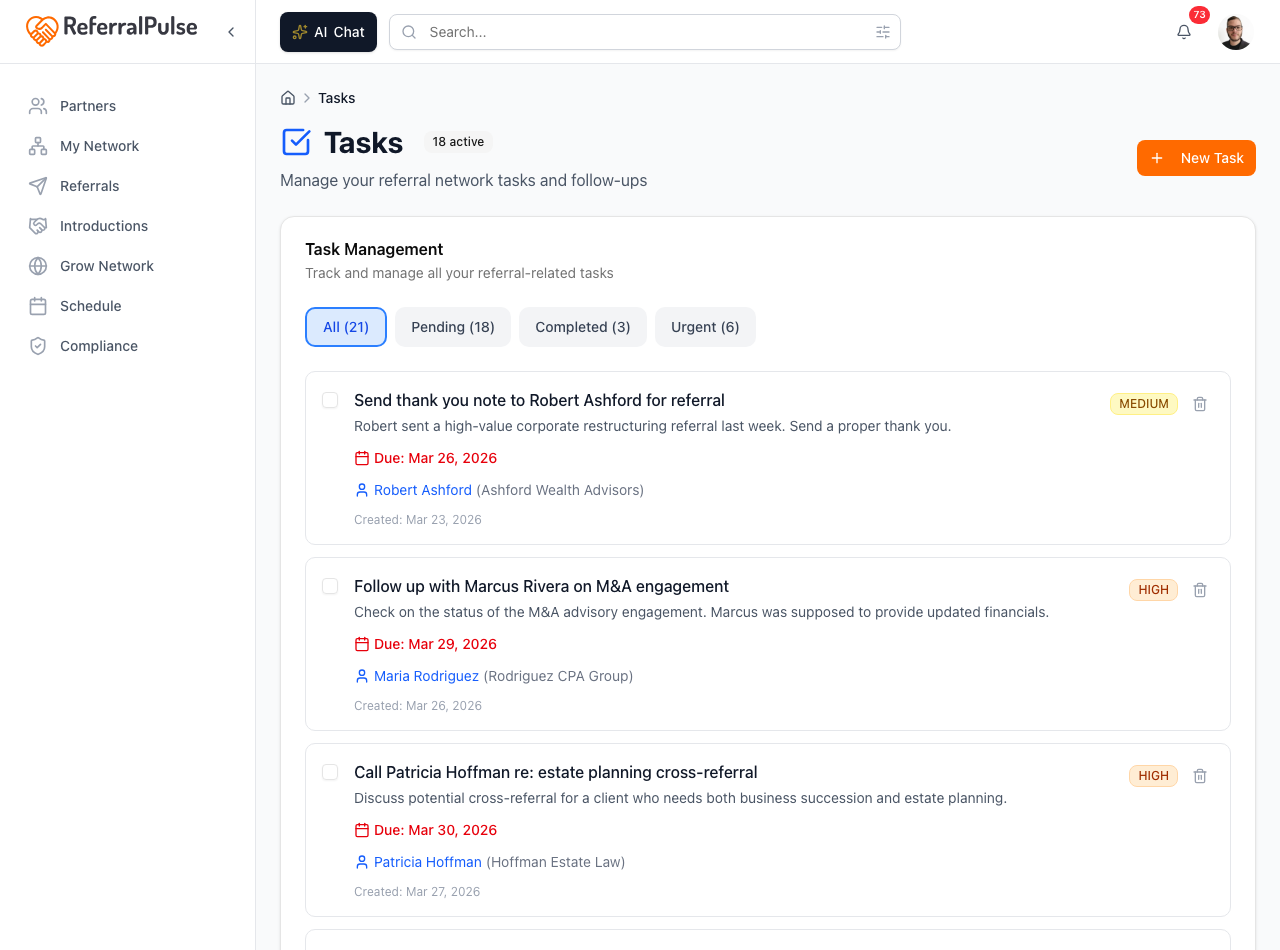
The Schedule page is better for planning. The Tasks page is better for clearing. If you find yourself in calendar view trying to scan tasks, switch to Tasks. If you find yourself in a task list trying to figure out where it fits in your week, switch to Schedule.
By voice or in chat
Where to find it: Top of any dashboard page → AI Chat button. On iOS, the same chat opens from the Chat tab in the bottom navigation.
The assistant can create and look up tasks for you.
Add a task to call Robert Ashford about the M&A engagement on Friday.
What's on my plate this week?
Mark the call-Sarah task as done.
What meetings do I have today?
The assistant pulls from your task list and your calendar and answers without you opening the page. It can also create tasks linked to a partner or referral when you mention one in the request.
Get more out of your assistant
The schedule and the task list are how the assistant sees what's already on your plate. A few things to keep in mind:
- Connect your calendar. Without a calendar connection, the meetings half of the page is empty and the assistant can't see what's coming up. Even read-only access is enough.
- Add the other attendee as a partner. Meetings only show up here when the other person is in your partner list. If you keep meeting with someone the app doesn't know about, add them as a partner so the meeting threads back into the right relationship.
- Link tasks to the right partner or referral. When you create a task from inside a partner page or a referral, the link is set automatically. When you create from the Schedule page header, set the partner / referral fields in the dialog so the activity flows back.
On the iOS app
Where to find it: Bottom navigation → Schedule tab on iOS, or open via the briefing's upcoming meetings.
The mobile schedule defaults to the Agenda view, which is the cleanest on a phone screen. Filter chips and search work the same. New Task is reachable from a plus button. Voice is the natural way to add tasks on the go:
Remind me to call Tom Friday morning about the Pham referral.
The assistant adds the task with the partner and the referral both linked, sets the priority, and confirms once saved.
The Agenda view is the same view that runs on the Briefing tab's upcoming meetings card. If something looks wrong on the Briefing, opening Agenda usually shows you why faster than scrolling the calendar.