How to add a referral partner
There are six ways to add a partner to your network, and on most of them ReferralPulse fills in the partner's profile for you so you don't have to retype anything. The fastest paths are calendar candidates (people you actually meet with), Provisors directory lookup (if you're a verified Provisors member), and pasting a LinkedIn URL. On the iOS app you can add a partner by voice without opening any form.
Methods
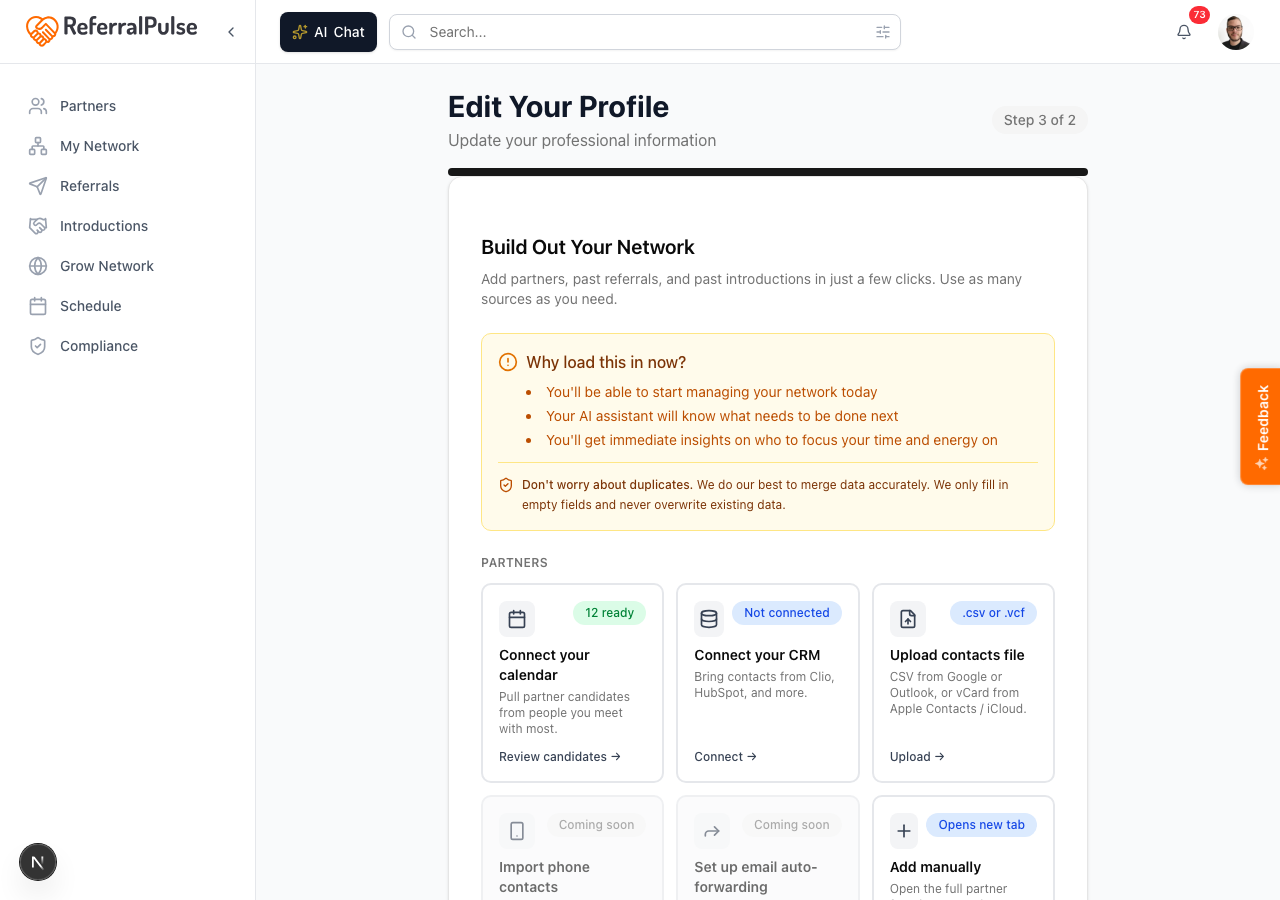
The first four methods (calendar, CRM, file upload, manual) all live in Build Out Your Network, which you reach from the Partners page.
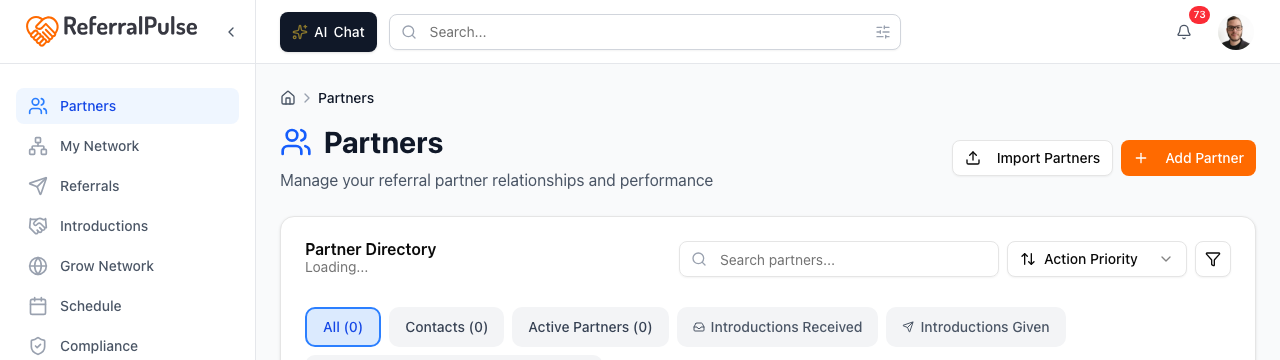
Where to find Build Out Your Network: Sidebar → Partners → Import Partners button (top right of the Partners page).
From your calendar
Where to find it: Sidebar → Partners → Import Partners → on Build Out Your Network, click the Connect your calendar card. Once your calendar is connected, the same card lets you click Review candidates.
If you connect your calendar, ReferralPulse scans the people you meet with most and surfaces them as candidates you can add as partners with one click. This is usually the highest-value path because the candidates are already people you have a real relationship with.
- Open Build Out Your Network and click Connect your calendar if you haven't already.
- Once the scan finishes, the card shows a count of suggestions like 12 ready.
- Click Review candidates on the same card.
- Tick the people you want to add. Their names, emails, and meeting history are already filled in.
- Use the Add as Partner action at the top of the list to add them in bulk.
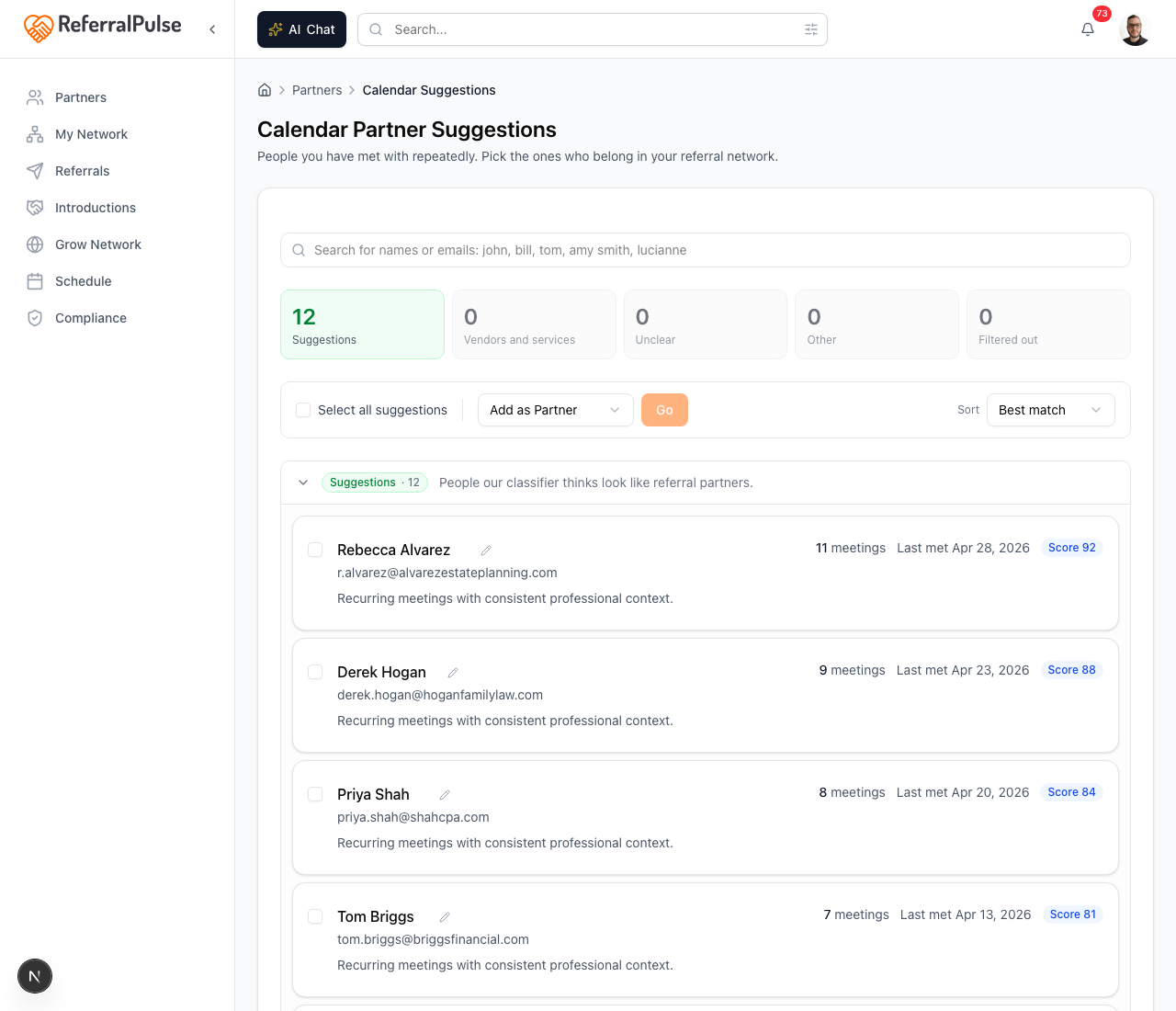
The candidate count climbs as you reconnect calendars or attend more meetings. If your number looks low, give the scan an hour and check again, or connect a second calendar from the same card.
Connect your CRM
Where to find it: Sidebar → Partners → Import Partners → on Build Out Your Network, click the Connect your CRM card. Once a CRM is connected, the same card lets you click Choose contacts.
If you use Clio, HubSpot, or another supported CRM, you can pull contacts directly. ReferralPulse keeps the contact records linked, so updates in your CRM flow through.
- From Build Out Your Network, click Connect your CRM.
- Authorize the integration in the panel that opens.
- Once connected, click Choose contacts on the same card and pick the contacts you want to bring in as partners.
You don't have to import everyone. Pick the contacts that are actual referral relationships and skip clients, prospects, and one-off contacts. You can always pull more later.
Upload a contacts file
Where to find it: Sidebar → Partners → Import Partners → on Build Out Your Network, click the Upload contacts file card → Upload.
If your contacts live in Google, Outlook, or Apple Contacts, export them and upload the file. CSV (.csv) and vCard (.vcf) are both supported.
- Export your contacts from the source app. For Google: Contacts → Export → Google CSV. For Outlook: People → Export contacts. For Apple Contacts / iCloud: select contacts → File → Export vCard.
- From Build Out Your Network, click Upload contacts file → Upload.
- Drop the file in the dialog. ReferralPulse auto-maps columns to the right partner fields. Review the mapping and click Import.
The CSV import only requires first name, last name, and email. Everything else is optional. Importing 200 sparse contacts is fine, your assistant will help you fill them in over time as you log meetings, referrals, and notes.
Add manually
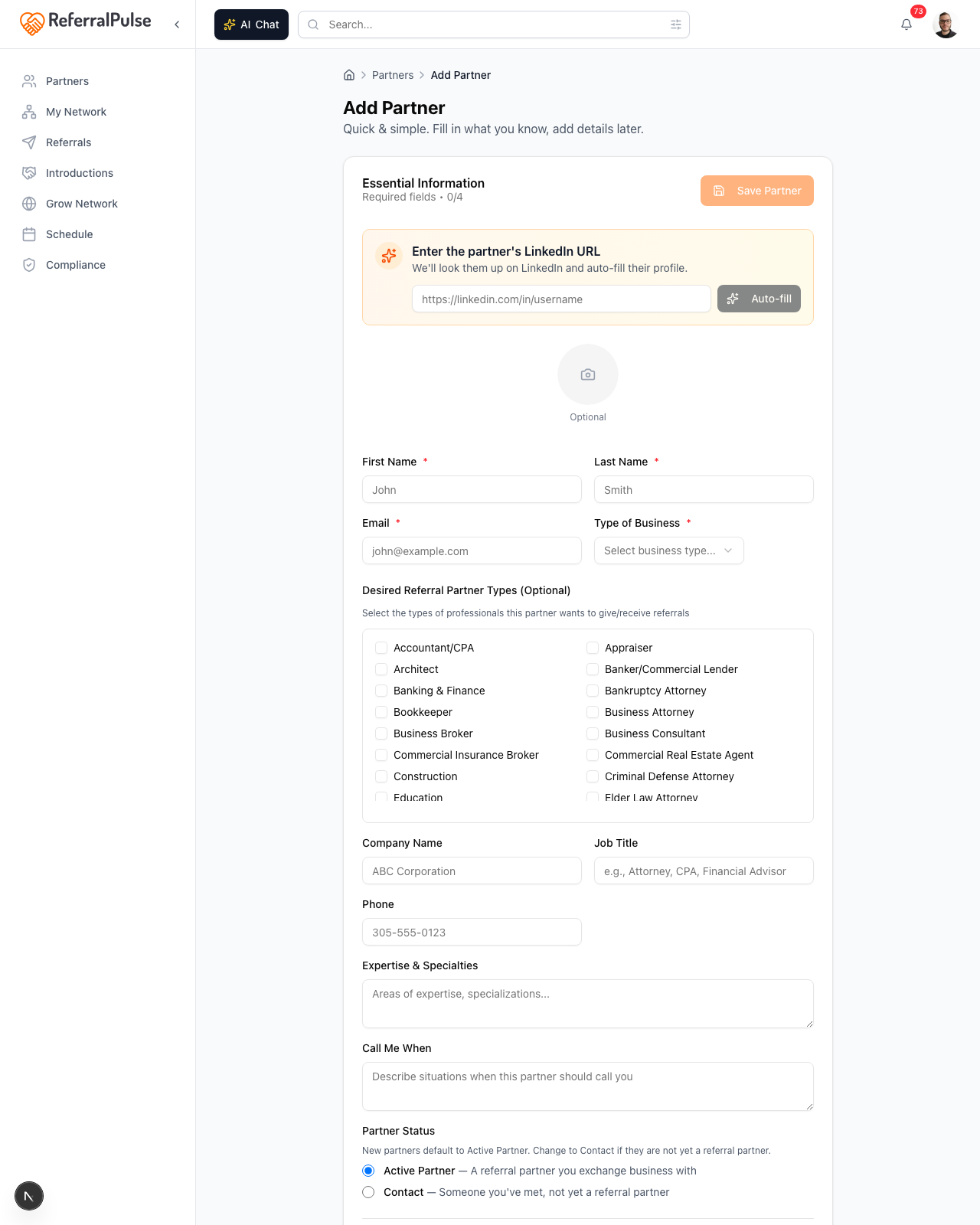
Where to find it: Sidebar → Partners → Add Partner button (top right of the Partners page). Also reachable from the Add manually card on Build Out Your Network, which opens the same form in a new tab.
When you want full control over the profile, or when the partner isn't anywhere else, open the manual form. There are two ways the form helps you fill it in fast, depending on who you are.
If you are a verified Provisors member
The top of the form is an email lookup. Enter the partner's email and click Look up. If they're in the Provisors directory, the form auto-fills their name, headshot, company, profession, expertise, and the rest of their public profile. You only have to fill in your relationship details at the bottom.
If the email lookup didn't find a Provisors match, you'll see a button to Fill remaining fields from LinkedIn. Paste their LinkedIn URL there and the form fills in everything LinkedIn has.
The Provisors lookup only works for verified Provisors members. If you haven't been verified yet, complete verification from your Provisors settings. Once verified, every Provisors partner you add fills in automatically.
If you are not a Provisors member
The top of the form is a LinkedIn URL field. Paste the partner's LinkedIn URL (e.g. https://linkedin.com/in/sarahchen) and click Auto-fill. The form populates name, headline, company, location, and profile photo from their public LinkedIn profile. The whole step takes about ten seconds.
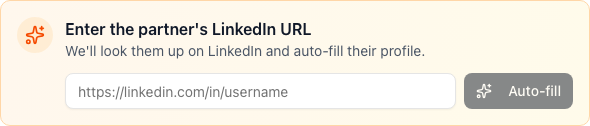
Even if the LinkedIn URL doesn't auto-fill perfectly, it almost always gets the name, company, and headshot right, which is the most tedious part. Fix any details by hand and save.
Working through the form
The form has four sections, top to bottom:
- Essential Information at the top: first name, last name, email, mobile phone, type of business. These are the fields you have to fill in to save. Email is what links the partner to their record everywhere else in the app.
- Desired Referral Partner Types in the middle: a checkbox grid where you pick the types of professionals this partner wants to give and receive referrals from.
- Partner details below that: company, title, expertise, ideal customer, services offered, languages, networking groups, and so on. These are optional and you can fill them in over time.
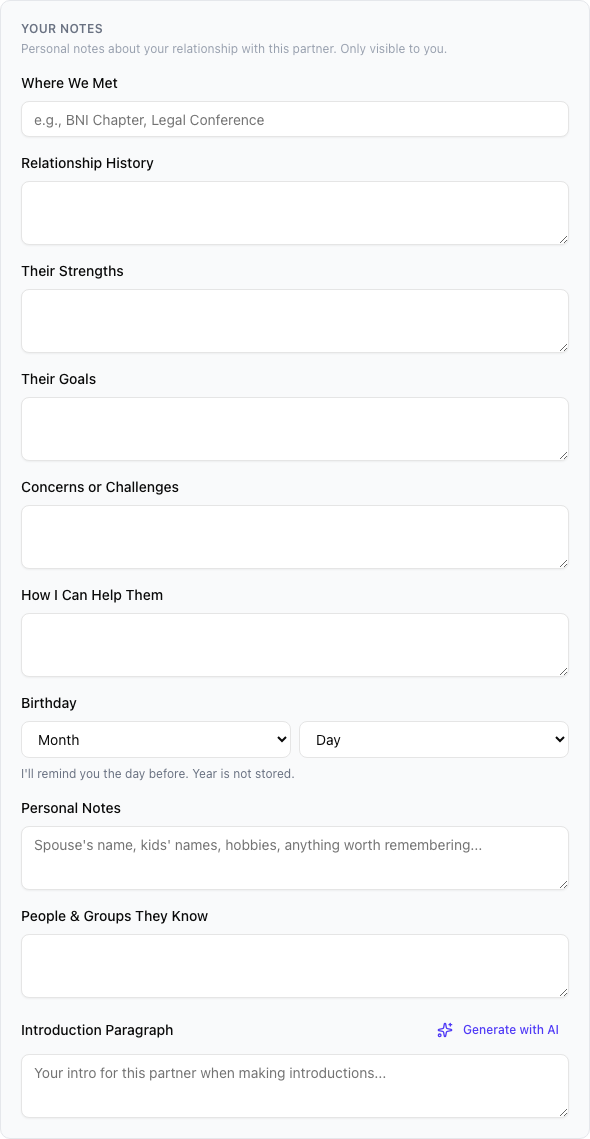
- Your Notes at the bottom, in a gray panel: where you met, relationship history, their strengths and goals, birthday, personal notes about their family or hobbies, and an introduction paragraph you can use when sending intros. These notes are private to you and never shared with the partner.
Bulk invite partners to connect
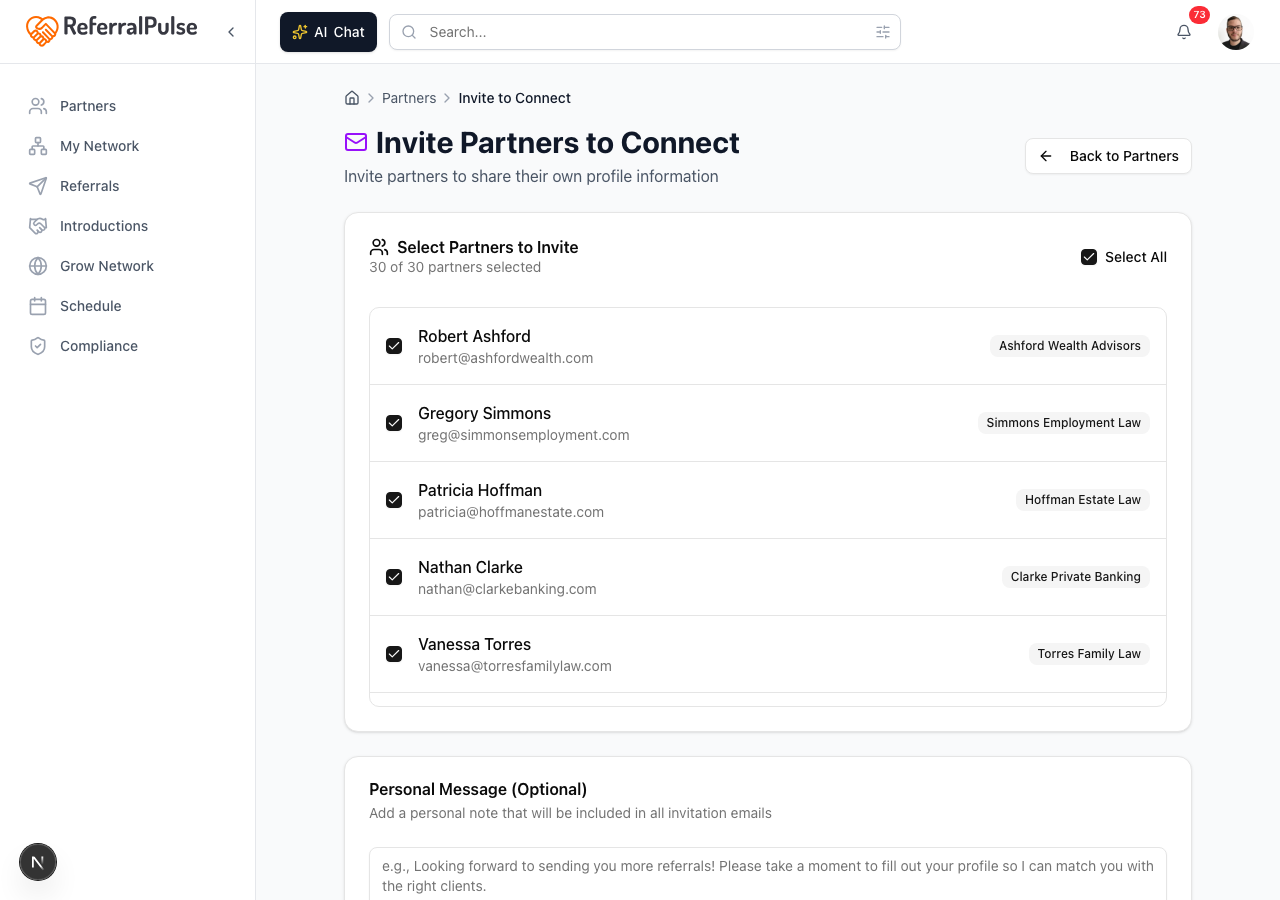
Where to find it: Sidebar → Partners → Invite to Connect button (top right of the Partners page). The button shows the number of partners eligible for invitation, like Invite to Connect (5), and only appears when at least one of your partners hasn't been invited yet.
If you've already added partners but haven't invited them to ReferralPulse yet, you can send invitations to several of them at once.
- Click Invite to Connect on the Partners page.
- Tick the partners you want to invite, or click Select All.
- Add a personal note (optional but recommended). The same note goes to everyone you tick.
- Click the send button.
This isn't really a way to add new partners, it's a way to follow up on partners you've already added. Add the partner first, then come here to invite them.
By voice or in chat
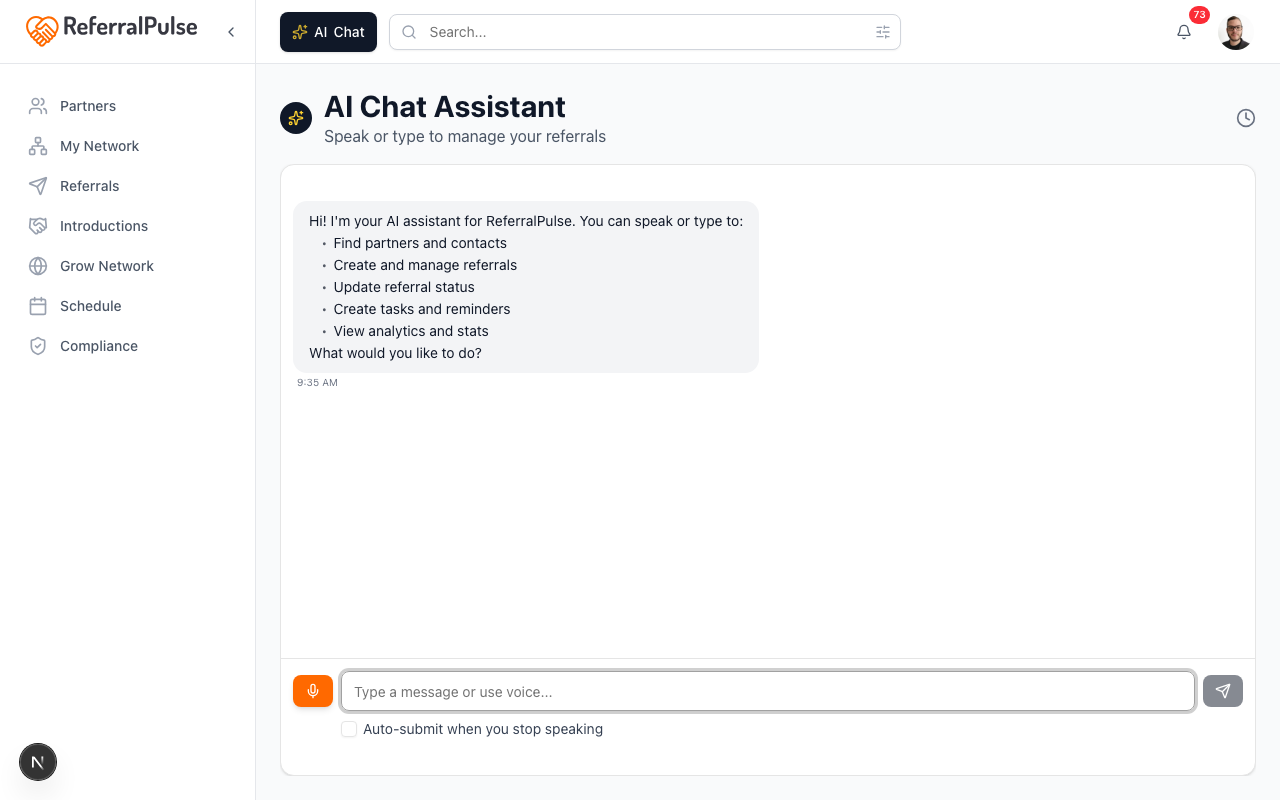
Where to find it: Top of any dashboard page → AI Chat button (dark button to the left of the search bar). On the iOS app, the same chat opens from the Chat tab in the bottom navigation.
The fastest way to add a partner, especially between meetings, is to just tell the assistant. Open the AI Chat panel, then type or speak:
Add Sarah Chen as a partner. She's a CPA at Smith and Co in Tampa, met her at a Provisors meeting last Tuesday.
The assistant fills in everything it can from what you said (name, profession, company, city, where you met) and saves the record. If something is unclear, it asks you to confirm before saving. You don't open a form, you don't tap fields.
The assistant is smart about distributing details. "She's the family-business specialist at Smith and Co" goes into the expertise field. "Her son just started college" goes into personal notes. You don't need to think about which field is which, just describe the partner the way you'd describe them to a colleague.
Coming soon
Two more methods are on the way. You'll see them in Build Out Your Network labelled Coming soon:
- Import phone contacts. Scan a QR code on your phone to bring in your device contacts directly, no export step.
- Set up email auto-forwarding. Forward future referrals, intros, and connection invites to a dedicated address and ReferralPulse will create or update the relevant partner records automatically.
Get more out of your assistant
Two fields on each partner drive most of what your assistant can do for you in your network. Fill them in even if you skip everything else.
- Type of business. This is what the partner does. It's the first signal the assistant uses when deciding which partners to suggest for an introduction, when surfacing dormant partners worth re-engaging, and when matching meeting candidates to your existing network.
- Desired Referral Partner Types. This is who the partner wants to receive referrals from. It's the field that drives gap-finding (which professions are missing from your network), partner recommendations (who you should add next), and intro-pair suggestions (who in your network would benefit from meeting whom). When you change a partner's type of business, the form pre-checks a sensible starter set of desired types, but the recommendations are only as good as the choices you confirm.
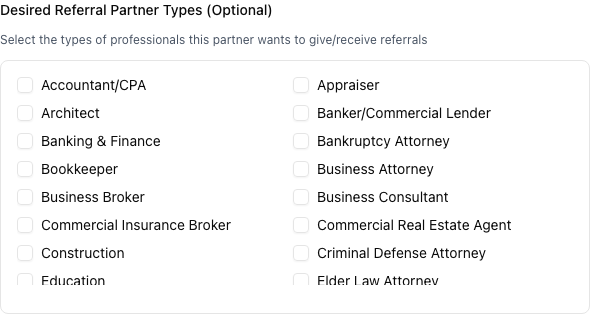
If your network feels noisy or the assistant's suggestions feel off, the fastest fix is to revisit Desired Referral Partner Types on your top 10 partners. A few minutes there usually beats hours of fiddling with anything else.
On the iOS app
Where to find it: Bottom navigation → Chat tab (microphone icon). Or tap the AI Chat button in the header from any screen.
On iOS the assistant is your primary way to add partners. Tap the Chat tab and speak:
Add Marcus Johnson as a partner, financial advisor at Northstar Wealth, met him at the chamber breakfast on Thursday.
The assistant:
- Creates the partner with the name, profession, company, and the meeting note.
- Asks you for the email if you didn't include one (email is required to save).
- Confirms once saved, with a link to the new partner's profile.
If you're a verified Provisors member, you can also say "Look up Sarah Chen in Provisors and add her" and the assistant will pull her profile from the Provisors directory before creating the record.
Voice works hands-free in the car. You can dictate three or four partners in a row and the assistant batches them, then asks for any missing emails at the end. Faster than any form.