Daily briefing
The home dashboard is your daily briefing. It's the screen you should open every morning for the first month so you build the habit of letting the app surface what to do, instead of trying to remember every relationship in your head. The page title at the top says Daily Briefing and the subtitle is "Act on what matters most."
Each card on the page is a different way of looking at your network. This article walks each one and explains when it's telling you something worth acting on.
Where to find it
Where to find it: Sidebar → click the orange ReferralPulse logo at the top, or just open /dashboard. On the iOS app, the same content lives on the Briefing tab in the bottom navigation.
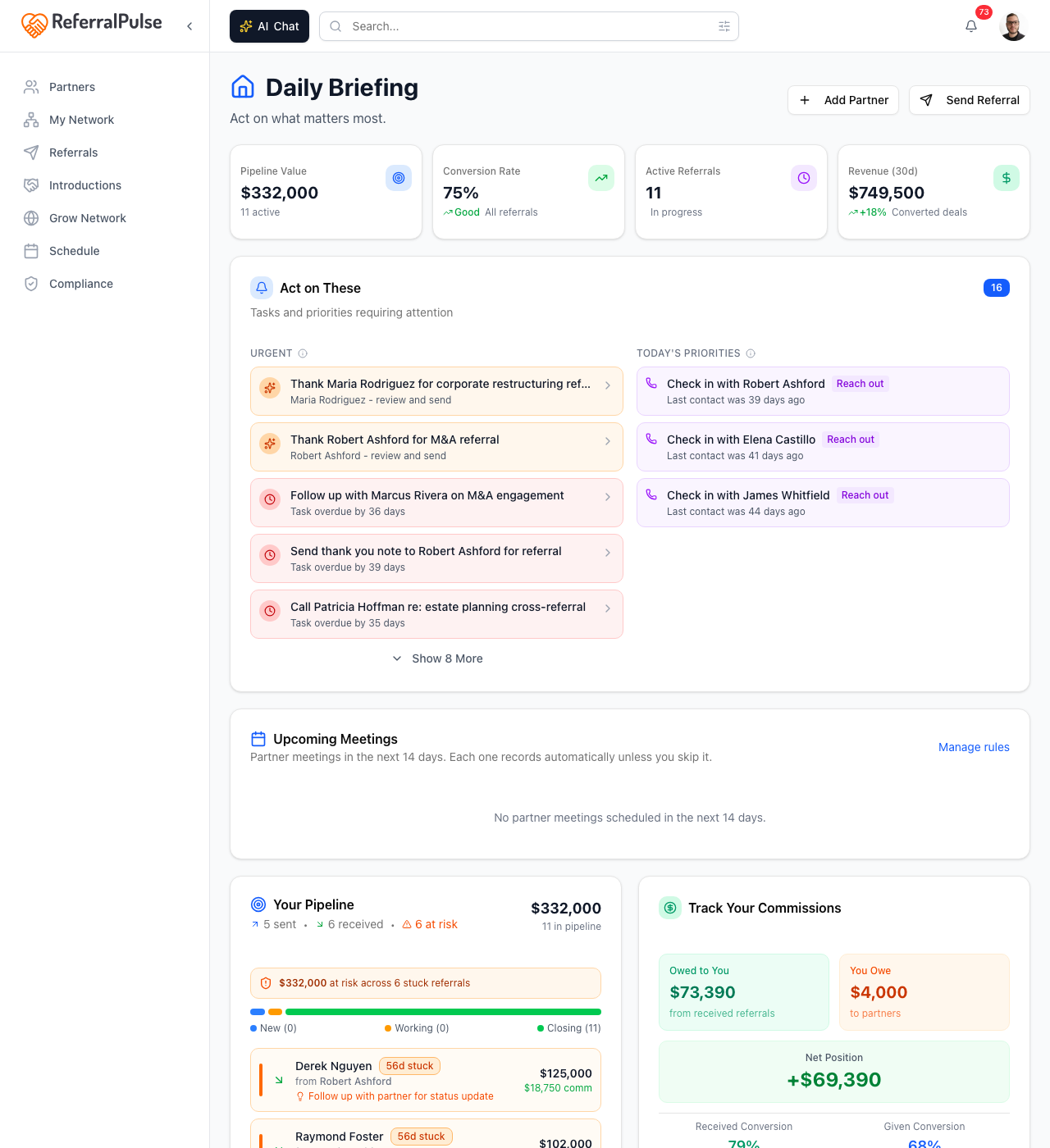
The page header has two CTAs: Add Partner and Send Referral. They're shortcuts for the two things people add to ReferralPulse most often. Both open the same forms documented in How to add a referral partner and Logging and tracking referrals.
Quick stats
The four tiles right under the page header are the state of your business in one glance.
- Pipeline Value. Total dollar value of every open referral. If this number is climbing month over month you're in growth mode; if it's flat or shrinking, the network needs more activity.
- Conversion Rate. Share of all referrals that have ended up Won. The healthiest range varies by profession but anything above 50% is excellent.
- Active Referrals. Count of open referrals in flight. A small number with high pipeline value is good (large deals); a large number with low pipeline value usually means the at-risk count is also high.
- Revenue (30d). Won-deal value in the last 30 days. The most concrete leading indicator of where the business actually is.
Click any tile to drill into the matching filter on the Referrals page.
Act on These
This is the most important card on the page. It surfaces the items that need a decision today. The card has two columns:
- Urgent. Overdue tasks, pending thank-you notes you owe, status updates that have been sitting for weeks, stuck referrals, connection requests, commission follow-ups, and compliance alerts. Each row links to the place where you can act.
- Today's Priorities. Meetings happening today (with a Join button if a video link exists), partners you haven't been in touch with for a while, and proactive outreach suggestions ranked by how overdue the relationship is.
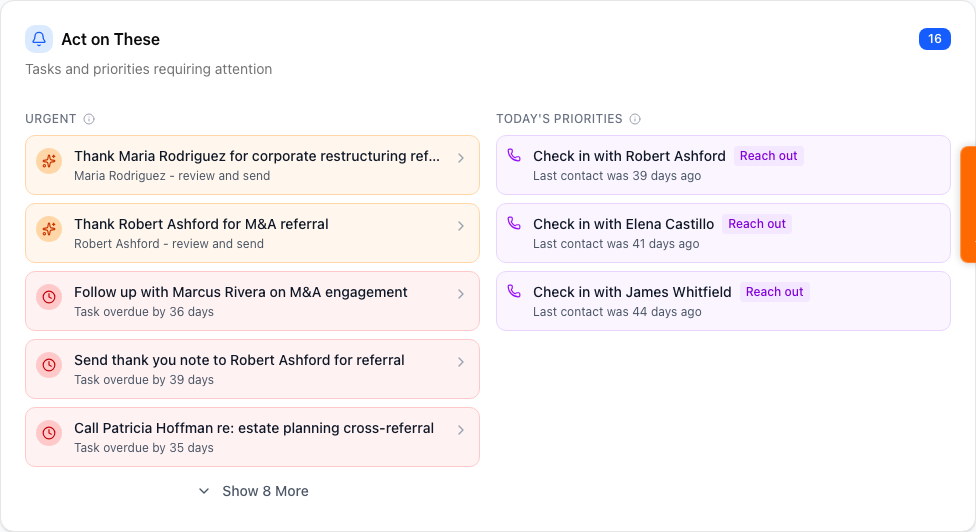
Working this card top to bottom for two minutes each morning is the single highest-leverage habit in the app. The other cards are useful, but this one is what stops referrals from going cold.
The Urgent column has a Show More link at the bottom when there are more than five items. Don't hide the rest. If anything's been hanging around for weeks, it's almost always faster to clear it now than to keep skipping past it.
Upcoming Meetings
Below Act on These is a card showing partner meetings in the next fourteen days. Each meeting record renders automatically unless you skip it. If you have a meeting recorder connected, the same meetings will get summaries and notes after they happen, surfaced on the Meetings page.
If a meeting on this card looks wrong (skipped, wrong partner, you joined a different call), tap Manage rules in the card header to control which meetings the bot joins.
Your Pipeline
Open referrals ranked by dollar value, with stage indicators showing how far each one has progressed.
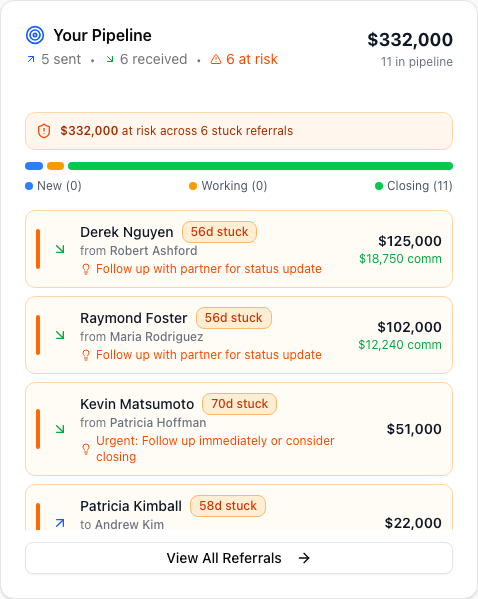
This card is a faster way to spot a stuck deal than the full Referrals page. Each row shows:
- The client name and the partner.
- Direction (referral you sent vs received).
- A stage indicator: New (just created), In progress (older than a day), or Closing (older than two weeks). Closing-stage deals that haven't moved in a while need a status update or a nudge.
- An at-risk badge with a recommended action when the deal has been stuck.
Track Your Commissions
Two rows of numbers next to Your Pipeline:
- Owed to you vs You owe: how much commission income is pending from won deals where partners haven't paid yet, vs how much you owe partners on referrals you received.
- Collected this month vs Paid this month: actual cash movement.
- Conversion rates: separate numbers for received referrals (how often the ones partners send you turn into deals) and given referrals (how often the ones you send to partners turn into deals).
If commissions aren't part of your business, this card is informational only.
Sharpen Your Strategy + Grow Your Network
These two cards sit side by side.
Sharpen Your Strategy flags trends in your network: dormant partners, lopsided reciprocity, gaps in the kinds of professionals you have, and so on. It's the proactive intelligence layer.
Grow Your Network is a list of new partners the app suggests for you, drawn from the calendar candidates, your Provisors directory if you're a verified member, and the patterns it sees in your network. Click any candidate to add them as a partner.
Nurture Your Partners
Partners trending toward dormant. The card uses the relationship signals it has on each partner (last contact date, referral history, meeting cadence, follow-up activity) to flag which ones are worth a check-in this week.
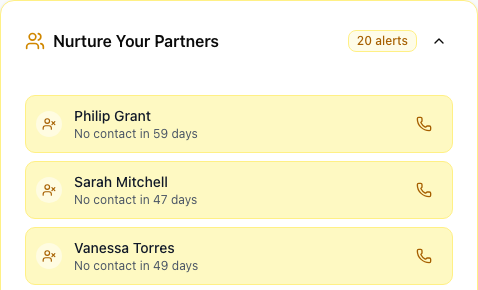
The card has a Show more link when there are more than five flagged partners. The expanded view groups them by severity so you can prioritize the ones most at risk of going cold.
Stay Ahead
Subtitle: "AI-suggested emails to strengthen relationships." This card surfaces drafts the assistant has prepared on your behalf so you can review and send them. The card shows tile counts for the two main draft types:
- Thank yous for received referrals you haven't acknowledged.
- Status updates for partners on referrals where you haven't told them what happened.
Below the tiles is a one-line summary like "4 partners waiting for your communication" with the Review Actions button.
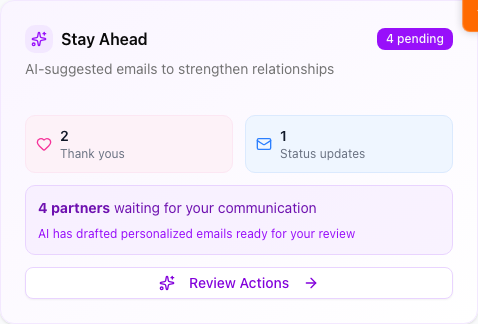
Click Review Actions to open the full queue at /dashboard/actions. Every draft is review-and-send. The app never sends anything on your behalf without you clicking a button.
The Stay Ahead drafts are the highest-quality outputs your assistant produces, because they have full context about the partner, the referral, and the relationship history. Skim every draft, edit anything that sounds off, and send. Spending five minutes a day in this queue keeps your follow-up tighter than 95% of professionals do by hand.
Top Connectors
Partners who make valuable introductions for you, ranked by number of intros and the deal value those intros produced. Useful for spotting who in your network is most active on your behalf, so you can prioritize them in your own intro-making and thank-you cadence.
Recent Activity
Full-width feed at the bottom of the page. Logs of new referrals, status changes, partner adds, intros sent, meetings recorded, and commission payments. Useful for catching up after a few days away.
On the iOS app
Where to find it: Bottom navigation → Briefing tab.
The mobile briefing is a streamlined version of the desktop dashboard. It puts Act on These at the top, then the upcoming meetings, then a condensed view of pipeline and partner health. The full set of desktop cards isn't shown on mobile because they're better suited to a wider screen.
You can ask the assistant about anything on this page by voice:
What's on my plate today?
The assistant reads back the Urgent items and Today's Priorities. You can act on each one by saying things like "draft a thank-you to Sarah for that referral" or "mark the Watts referral as won."
Open the Briefing tab when you sit down with your coffee. Two minutes there sets the tone for the day. Open it again before bed, especially the first month, to make sure nothing's lingering.