Every email is a draft until you approve it
ReferralPulse will never send an email to a partner, a referred client, or anyone else in your network without you reading it first. Every partner-facing email the assistant produces, thank-yous, status updates, introductions, follow-up nudges, referral notifications, opens as a draft you can read, edit, send, save for later, or throw away. You always have the last word.
This is a deliberate design choice. The relationship in your network is yours, your name is on every message, and a tone-deaf email costs more than a missed one. So the assistant writes, but you sign.
Where drafts show up
You will see drafts in five places. Each one looks slightly different, but the rule is the same in every one: nothing leaves your account until you click send.
After you log a referral you sent
When you save a new referral on the Give Referral form and the partner has an email on file, a dialog opens with a draft notifying the partner about the client. The dialog title is Introduce [Client] and [Partner]? when the client also has an email on file, or Notify [Partner] about the referral? when they don't.
The draft is pre-filled with a subject and body the assistant has written from the referral details. Both fields are fully editable. At the top of the dialog you'll see the recipients listed (To and Cc) so you know exactly who the email goes to.
Two buttons at the bottom: Send email to send it as written, or Skip to close the dialog and not send anything. If you skip, the draft is not saved anywhere. The referral is logged either way.
If the client has an email on file, you'll see a segmented choice at the top of the draft: Introduce [Client] and [Partner] for a two-way intro that loops the client in, or Heads up to [Partner] for a one-way notification. Picking a different option rewrites the draft to match.
After you log a referral you received
When you save a referral on the Receive Referral form, the assistant queues a thank-you draft to the partner who sent it. The draft opens in an editor with the dialog title set to the action it represents, like Thank Mary for the Henderson referral.
You can edit the subject and body, click Save Draft to keep your edits without sending, Later to dismiss the dialog and leave the draft in your Action Queue, or Send Email to send it. If you click Later, the draft sits in the queue until you come back, you can find it again on the Action Queue in the sidebar.
From the Action Queue
The Action Queue is the catch-all for drafts the assistant builds in the background, the ones it surfaces because it noticed something worth your attention. Examples:
- A partner you give referrals to but rarely hear back from, with a draft asking how things are going.
- A referral that's been sitting open for a long time, with a draft to the partner asking for a status update.
- A meeting that just wrapped, with a draft thanking the partner and recapping next steps.
- A partner whose birthday is this week, with a short personal note.
You'll find the queue at Action Queue in the sidebar. Each card opens the same draft editor, with Save Draft, Later, Send Email, and Regenerate with AI as the available actions.
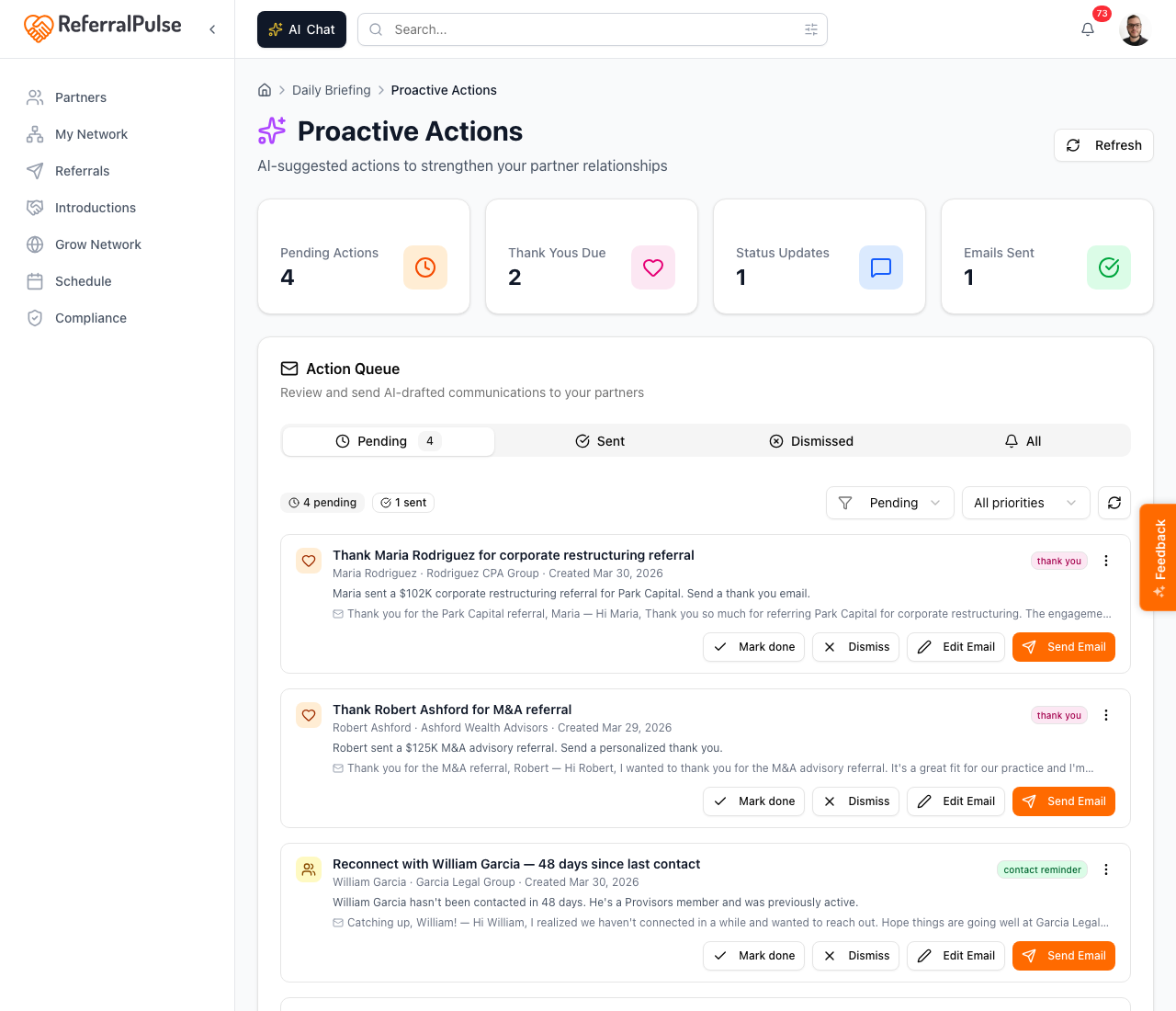
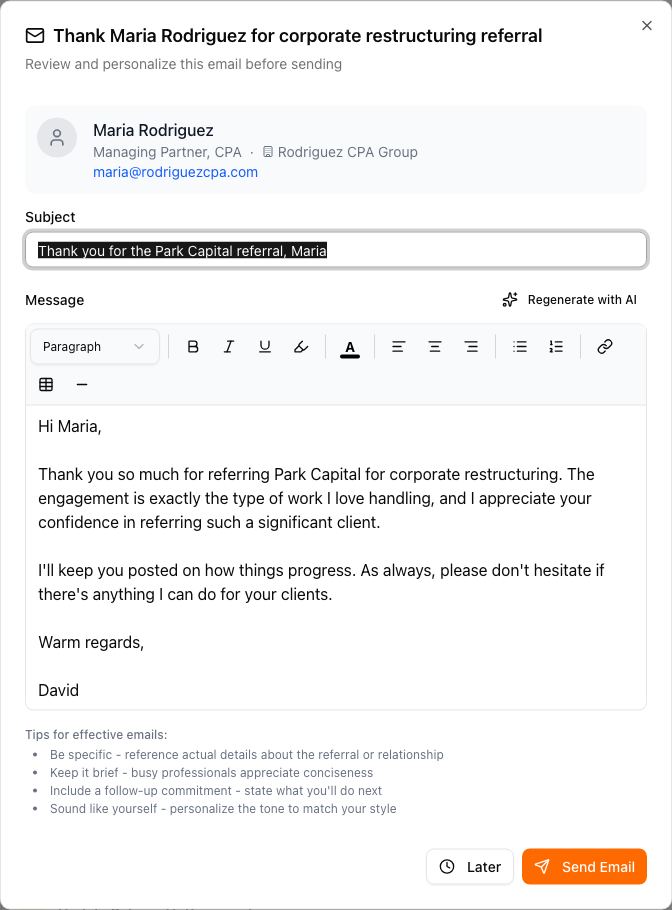
The queue is the only surface where drafts persist for as long as you want them to. Later snoozes the card so it stays in the list. Save Draft captures any edits you've made so the next time you open the card your version, not a fresh draft, is what you see. Drafts in the queue do not expire.
The Regenerate button rewrites the body from scratch using the latest context the assistant has about that partner. Use it if the original draft sounds off, if the situation has changed since the draft was created, or if you've updated the partner's profile and want the new details reflected.
Inside the introduction composer
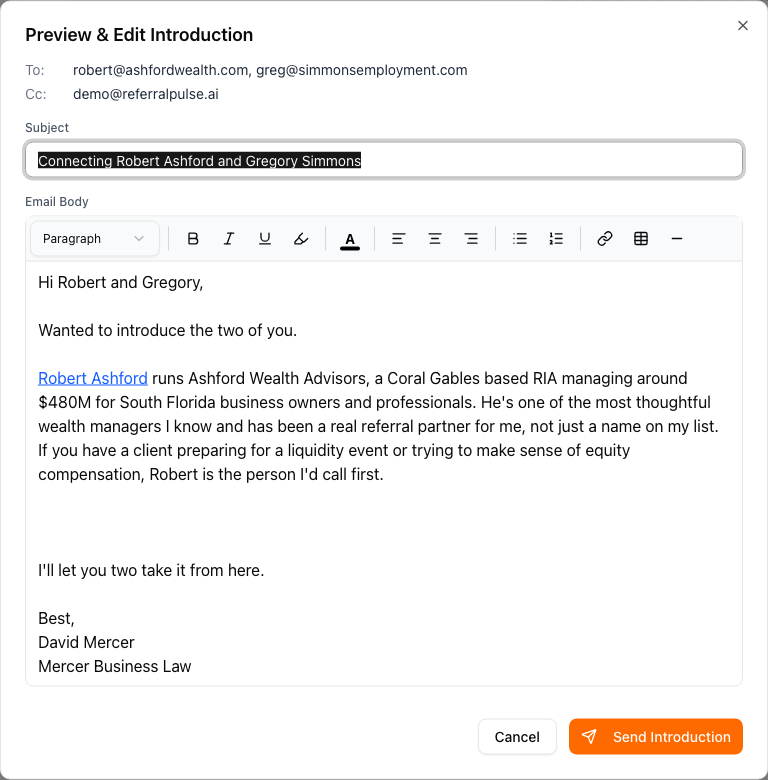
When you build an introduction between two partners on the introductions page, you'll see a Preview & Edit button after both bios are ready. Clicking it opens the full email, both partners' intro paragraphs, your sign-off, and the recipient list, in an editor.
The intro composer is a one-shot draft, not a persistent one. Send Introduction sends it. Cancel closes the modal and the draft is lost. There is no save-for-later in this flow because introductions are typically composed in the same minute they're sent.
From your voice or chat assistant
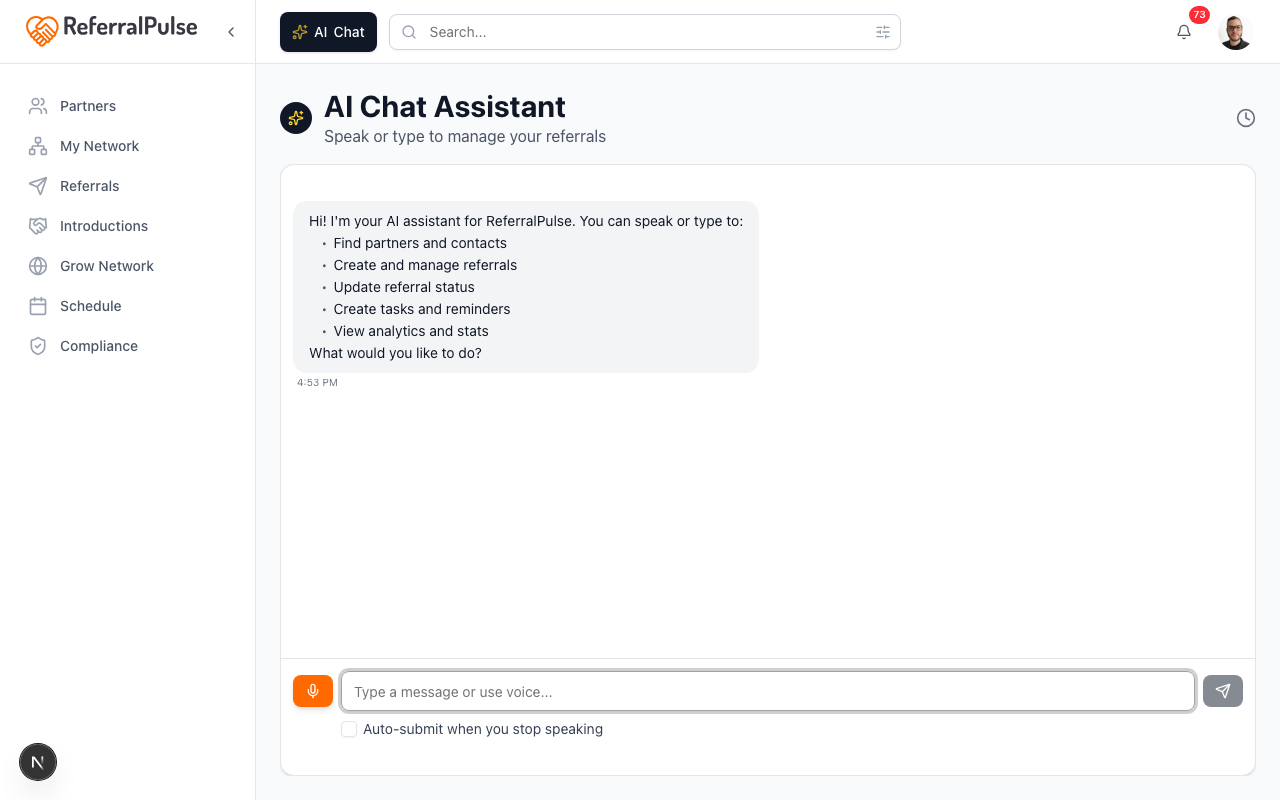
When you ask your assistant to send an email, by voice on iOS or by typing in the AI Chat panel, it doesn't send. It drafts, and the draft appears as a card right inside the chat. You'll see the subject, the body, the recipient, and three buttons: Edit, Cancel, Send.
Edit lets you tweak the subject or body. Cancel closes the card and discards the draft. Send actually sends.
If you ask "send Sarah a quick note thanking her for the Watts intro," the assistant writes the note, shows it to you in a card, and waits for you to click Send. It will not send on its own, even if you tell it to "send it for me." Sending requires your explicit click on the button.
What you can do with a draft
The buttons differ slightly across surfaces, but the available actions in each surface use these labels:
- Send Email or Send Introduction. Sends the draft as you've written it. The email leaves your account immediately. Replies come back to your inbox.
- Save Draft. Captures your edits without sending. Available on Action Queue cards. The next time you open the same card, your saved version is what you see.
- Later. Closes the editor and leaves the draft in the Action Queue. Available on Action Queue cards.
- Regenerate. Rewrites the body from scratch with fresh context. Available on Action Queue cards.
- Edit / Cancel. On voice and chat draft cards: Edit lets you tweak the text inline, Cancel discards the draft.
- Skip. On the Notify Partner dialog after a given referral: closes the dialog without sending. The referral is still logged.
Whatever you send goes from your name with replies routed to your email address. Partners see the email as coming from you, not from a "noreply" account, and their replies land in your inbox.
Where drafts live (and where they don't)
| Where it came from | Persists if you close it? | |---|---| | Action Queue card (thank-you, follow-up, status nudge) | Yes, stays in the queue until you send or dismiss | | Notify Partner dialog (after Give Referral) | No, discarded if you skip or close | | Introduction composer | No, discarded if you cancel | | Voice or chat draft card | No, discarded if you navigate away | | Bulk invite personal message | No, discarded if you don't send |
The Action Queue is your draft inbox. Anything you want to come back to later, leave it there with Later or Save Draft. The other surfaces are for in-the-moment drafts you're either sending now or letting go.
If you're not ready to send a referral notification or an introduction right now, save the work into the Action Queue by sending yourself a quick draft about it via the assistant. Voice command: "Remind me to email Sarah about the Watts intro tomorrow." The reminder goes into your queue with a draft you can edit and send when you come back to it.
What about system emails?
A small number of emails ReferralPulse sends are not person-to-person and don't go through the draft step. These are emails the app sends on its own behalf to operate, not on yours:
- The first welcome email when you create your account.
- Connect-your-account invitations to partners you've added (the partner sees a templated email from you with an optional personal note you wrote in advance).
- Password reset and account security emails.
- Onboarding reminders the app sends to nudge you back in.
These never include details about your partners, your referrals, or your relationships. Anything that does, anything where the message is from you to someone in your network, always goes through a draft you approve first.
On the iOS app
Where to find it: Bottom navigation → Chat tab. Or Action Queue tab if it's been added to your bottom nav.
The voice and chat draft flow on iOS works the same as the web. You ask the assistant for an email, the draft appears as a card in the chat feed, and you tap Edit, Cancel, or Send. Cards are full-width on a phone screen and the body field is scrollable, so even a long thank-you note is easy to read.
If you've left drafts in your Action Queue from earlier in the day, they show up under the Action Queue tab. Tap any card to open the same editor you'd see on the web, then send or save your edits.
Hands-free drafting is one of the most useful patterns on iOS. After a meeting in the car, dictate "thank Marcus for the Pham referral, mention I'll get back to him by Friday" and the assistant has the draft ready in your queue when you open the app at the next stop. Read it, edit if you need to, send.