Your profile
Your profile is what the rest of the app and your partners see about you. It's also the single biggest input into the quality of the recommendations your assistant makes for you. The profile editor is a multi-step wizard with a progress bar across the top. New users see four steps. Existing users editing their profile see two (the preferences and partners steps are hidden since they're already configured).
The fastest way to fill it in is to let ReferralPulse do it for you. If you're a verified Provisors member or you have a LinkedIn URL on file, the editor will pre-populate most of the fields in one click.
Where to find it
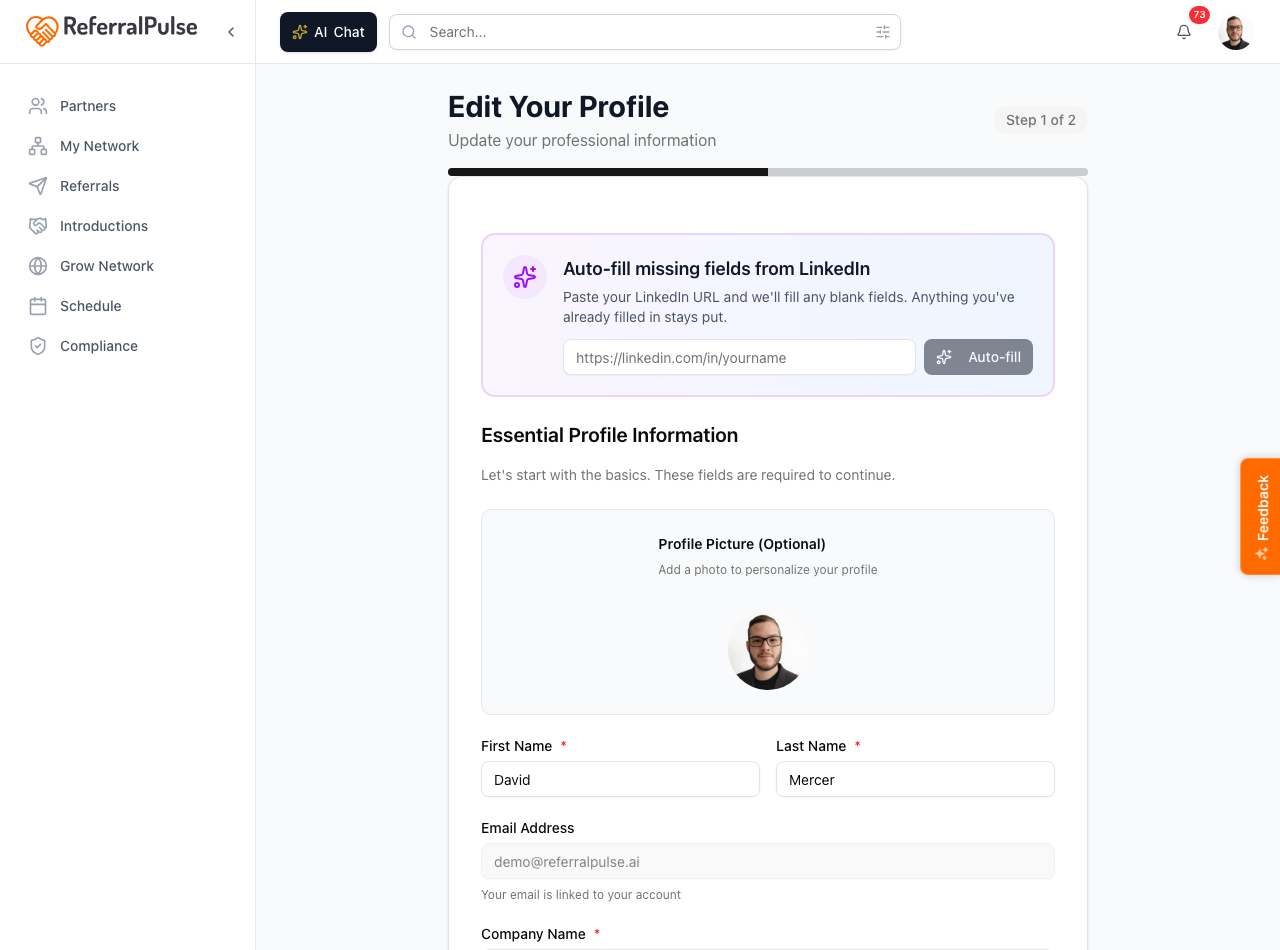
Where to find it: Top right avatar (your initials or photo) → Profile. Direct URL: /dashboard/profile?mode=edit. The header is Edit Your Profile with a "Step 1 of 2" badge in the top right (or "Step 1 of 4" the first time you sign up) and a progress bar underneath.
Methods
Auto-fill from your Provisors directory
Where to find it: Avatar → Profile → on Step 1, the green Pull from your Provisors profile card at the top of the form.
If your account is verified as a Provisors member, the editor opens with a green card that pulls your name, company, networking groups, and most of the profile fields straight from your Provisors directory entry. Click Refresh from Provisors directory and the wizard fills in any blank fields. Anything you've already typed stays put.
The Provisors prefill is the fastest way to a complete profile. If you signed up before you were verified and your profile is still sparse, come back here once verification clears and click the green button. You won't have to re-type anything.
Auto-fill from a LinkedIn URL
Where to find it: Avatar → Profile → on Step 1, paste your LinkedIn URL into the Auto-fill from LinkedIn URL field. If you're a verified Provisors member the field is hidden until you click Or auto-fill from LinkedIn URL under the green card.
If you'd rather use LinkedIn (or you aren't on Provisors), paste your LinkedIn profile URL like https://linkedin.com/in/yourname and click Auto-fill. The editor pulls your name, headline, company, location, expertise, services, languages, and the rest of what's on your public profile. Anything you've already typed stays put.
Re-running the LinkedIn auto-fill after you've added new sections to your LinkedIn profile is a one-click way to keep ReferralPulse in sync. The editor only fills in fields that are currently blank, so it's safe to re-run any time.
Edit by hand
Where to find it: Avatar → Profile. Walk the steps using the labelled next button (Next: Business, Next: Preferences, Save Changes) and the Back button at the bottom of each step.
The full wizard for new users has four steps. Editing an existing profile shows the first two:
- Profile. Your name, email, mobile phone, company, title, type of business, profession type, and the Desired Referral Partner Types checkbox grid. Email is required to save and can't be changed once your account is set up. Type of business and Desired Referral Partner Types drive most of the recommendations your assistant makes about partners and gaps, so this step is the most important one for the quality of everything downstream.
- Business Details. Company website, LinkedIn profile URL, city and state, expertise, ideal customer, what clients NOT to send you, company overview, what makes you different, when partners should call you with a referral, services offered, industries served, languages spoken, and networking groups. All optional but each one sharpens the assistant's read on the kind of clients to send your way.
- Preferences. First-time signup only. Profile visibility (private, network only, or public in the directory), email and push notification settings, referral preferences (commission practice, default referral terms), and assistant settings. After initial setup, you change these from the Settings page (Avatar → Settings), not this wizard.
- Partners. First-time signup only. Optional bulk import of your initial partner list. After signup, add partners from the Partners page; see How to add a referral partner for the full set of methods.
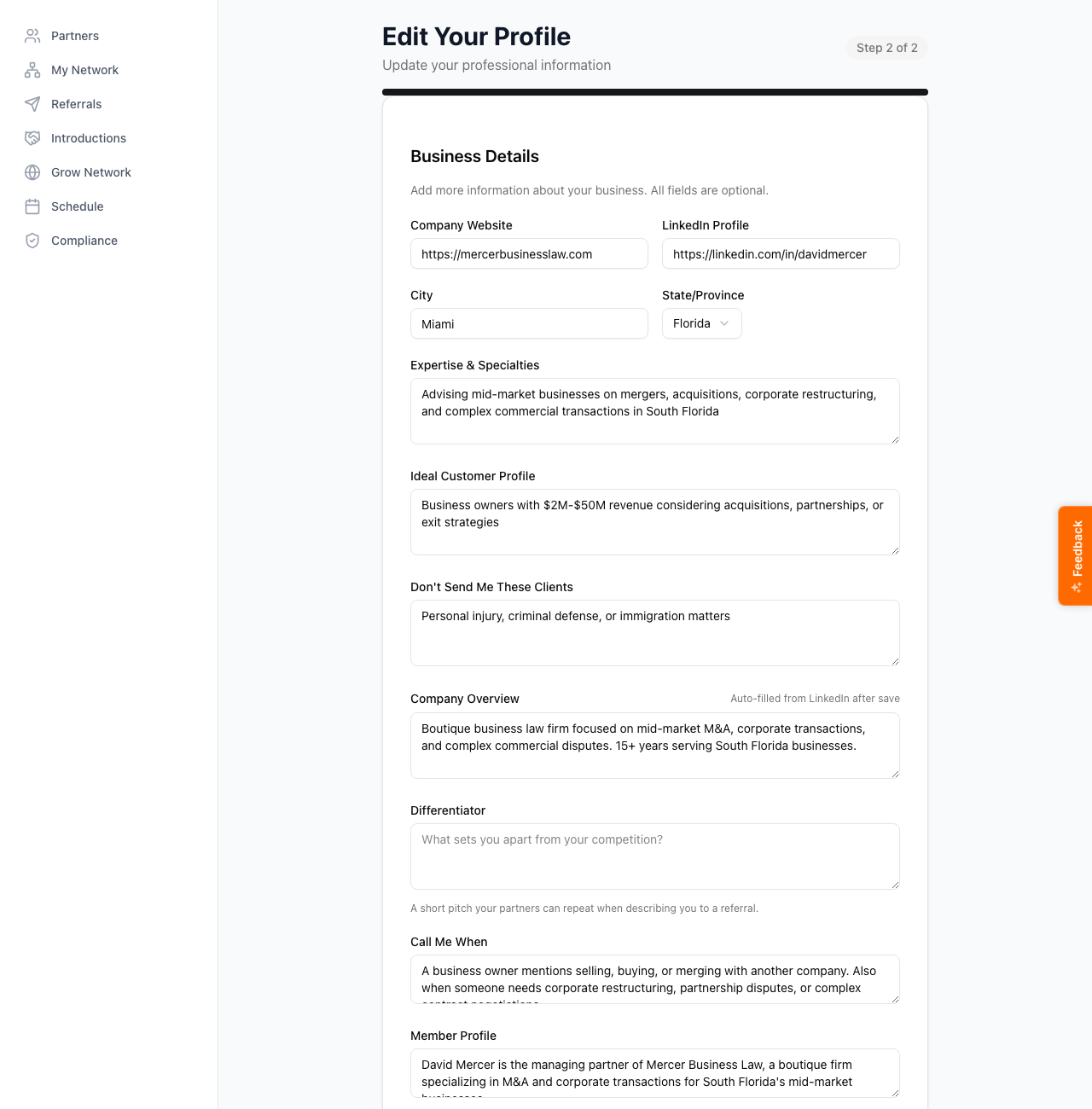
You can save partial progress and come back later. The wizard saves what you've entered when you click Continue, so closing the tab doesn't lose your work. The next time you open the editor it picks up where you left off.
Get more out of your assistant
A few fields on your own profile do most of the heavy lifting for the recommendations your assistant makes about your network. Worth filling in even if you skip the rest:
- Type of business and profession type on Step 1. Drives gap-finding (which professions your network is missing relative to people in your line of work) and the partner suggestions you see on the home dashboard.
- Desired Referral Partner Types on Step 1. The checkbox grid that says who you want partners to refer TO you. Drives the Grow Network recommendations and the partner suggestions on the dashboard.
- Expertise, ideal customer, and services offered on Step 2. Shape the intro drafts the assistant writes when you connect two partners, and the descriptions of you that show up on your partners' side when they look you up in the directory.
- Networking groups on Step 2. Lets the app suggest people you may have already met at the same chapter or event.
If the Grow Network recommendations or the partner suggestions on your dashboard ever feel generic, the fastest fix is to revisit Step 1, especially the Desired Referral Partner Types grid. Five minutes there changes the quality of every downstream recommendation.
On the iOS app
Where to find it: Bottom navigation → menu → Profile, or open the avatar in the iOS app's header.
The mobile editor is the same four-step wizard, optimized for a phone screen. The auto-fill cards and prefill flow work the same way. Voice isn't a primary input here because the form is structured, but you can dictate any free-text field (expertise, ideal customer, company overview) by tapping the microphone in the keyboard.
The first time you sign in on iOS, run the Provisors or LinkedIn auto-fill from the iOS profile editor. You don't have to switch back to the desktop. The mobile prefill flow is identical.