Alerts and notifications
Alerts are how ReferralPulse pulls your attention to something that's changed in your network or on your account. A partner updated their profile and you can sync the change. A referral has been sitting open for too long. A compliance threshold tripped. Whatever the reason, the bell icon in the header is the first place an alert shows up, and the Alerts page is where you triage them.
This is a separate surface from the action queue. The action queue is AI-drafted emails to send. Alerts are notifications that need attention but don't always have a draft attached.
Where to find it
Two surfaces:
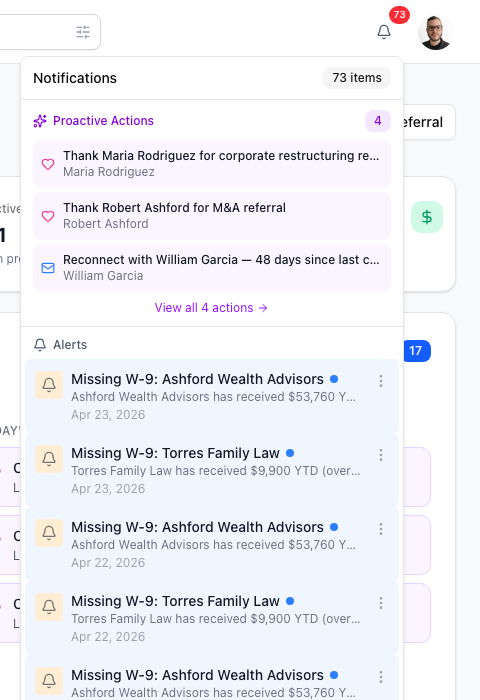
- Bell icon in the header. Top right of any dashboard page, between the search bar and the avatar. A red badge shows the count of unread items (alerts plus pending action drafts combined).
- Alerts page. Open the bell, then click View all alerts at the bottom of the dropdown. Direct URL:
/dashboard/alerts. The page header is Alerts with a one-line subtitle: "Monitor and manage your alerts."
What kinds of alerts you'll see
The system generates a handful of alert types. The ones you'll see most often:
- Partner profile updated. A partner of yours updated their own profile in ReferralPulse. The alert offers a one-click sync to pull their changes into the partner record on your side.
- Referral at risk. An open referral has been sitting in the same stage for weeks. The alert links to the referral so you can update its status or nudge the partner.
- Compliance threshold tripped. A metric like commissions outstanding or partners missing W-9s has crossed your threshold. Only shown when commissions are part of your practice.
- System informational. Account-level notifications: a new feature, a change in your subscription, a reminder to verify your Provisors membership.
Each alert has a severity (critical, warning, or info) and a state (unread / read / resolved).
Methods
Triage from the bell
Where to find it: Top right of any dashboard page → bell icon in the header.
The bell dropdown is the fastest way to peek at what's new without leaving the page. Pending action drafts show up at the top under Proactive Actions (see The action queue). Alerts show up below that. Click any alert to either navigate to where it lives or open the relevant action modal.
The three-dot menu on each alert lets you mark it read or unread, or delete it.
The bell badge counts both pending action drafts AND unread alerts together. If the badge looks high but the Alerts page is calm, the rest is sitting in the action queue.
Manage from the Alerts page
Where to find it: Bell icon → View all alerts at the bottom of the dropdown. Or open /dashboard/alerts directly.
The full Alerts page gives you four KPI tiles at the top (Total, Unread, Unresolved, Critical), a search box, and two filters (status and severity). Below that is the full list, with each alert as a card showing the title, the message, the severity badge, the time stamp, and three buttons: Read / Unread, Resolve / Unresolve, and a delete icon.
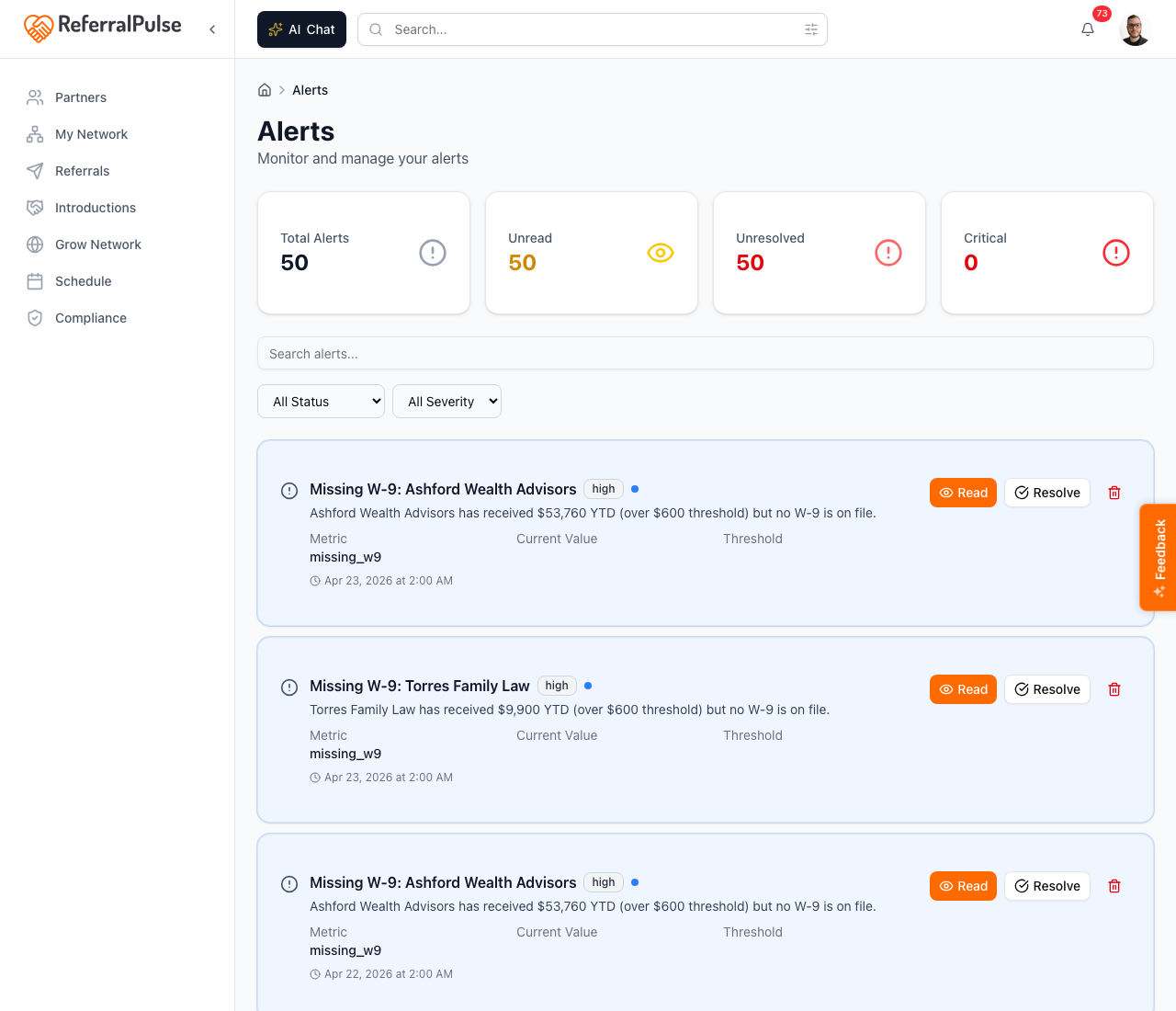
The two filter dropdowns let you narrow:
- Status. All / Unread Only / Resolved Only.
- Severity. All / Critical / Warning / Info.
Alerts marked Resolved drop out of your day-to-day view but stay searchable in the All filter.
Sync a partner profile update
Where to find it: Bell icon → click any Partner Update alert (purple "Sync Available" badge), or open the same alert from the Alerts page.
When a partner updates their own ReferralPulse profile, the change doesn't auto-overwrite what you have on your side. Instead, an alert lands with a Sync Available badge. Click the alert and a modal opens listing each field the partner changed, with the new value next to the value on your record. You tick which fields you want to pull in and click sync.
The sync is opt-in by field, so you can pull in their new title and skip a city change you already corrected. Once you've synced, the badge changes to Synced and the alert is marked complete.
By voice or in chat
Where to find it: Top of any dashboard page → AI Chat button.
The assistant can answer questions about what's pending in your alerts.
What alerts do I have?
Anything urgent today?
The assistant reads back the open alerts grouped by severity, with one-line summaries. Acting on each one (mark read, resolve, dismiss) still happens on the Alerts page or the bell dropdown.
Get more out of your assistant
The alerts you see are partly driven by your account settings:
- Notification preferences. Set on Step 3 of your profile. Email, push, and in-app channels can be toggled per type.
- Profile visibility. Public profiles in the directory can receive partner-update alerts when other ReferralPulse users sync your data; private profiles don't.
- Compliance designation. Drives whether compliance-threshold alerts show up at all. If commissions aren't part of your practice, you won't see them.
If the bell never goes quiet, the most common cause is unresolved partner-update alerts piling up. Set aside two minutes to walk the list. Sync the changes you want, dismiss the ones you don't, and the bell will be calm by the end.
On the iOS app
Where to find it: The bell icon lives in the iOS header on every screen, in the same position as desktop.
Push notifications for alerts are off by default. Turn them on per-type from Step 3 of your profile (Preferences → Notifications). Critical alerts are good candidates for push; informational ones usually aren't.
Voice works for asking what's open: "what alerts do I have?" returns a read-out and you can act from the mobile bell dropdown right after. Avoids opening the alerts page entirely.