The partner detail page
Every partner has a detail page that's the single place you go to know everything about that relationship. Their profile fields, your private notes about them, the metrics for your referral history together, the activity timeline, and any compliance information if you exchange commissions. The page is also where you take action on a single relationship: invite them to connect, promote a contact to a partner, or work through the recommended actions your assistant has surfaced for them.
Where to find it
Where to find it: Sidebar → Partners → click any row in the partners list. Direct URL: /dashboard/partners/{partner id}. Also reachable from any partner card anywhere in the app (referrals, intros, meeting attendees, the action queue).
The page top shows a breadcrumb (Partners > {name}) with two buttons on the right: Ask AI opens the assistant scoped to this partner, and Edit Details flips the page into inline edit mode. Below that, the partner card has the profile photo, name, status badge (Partner, Contact, or Inactive), an Invite to Connect button when the partner has an email and hasn't been invited yet, and any compliance license badge if applicable. If your assistant has flagged any alerts for this partner, a small bell appears in the top right of the card.
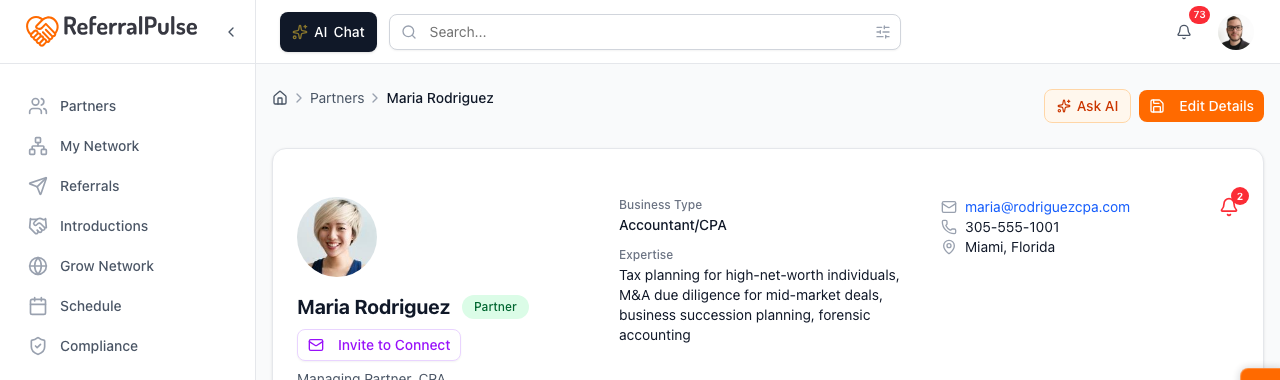
A few action buttons appear depending on the partner's state:
- Promote to Partner. Only on a Contact (someone you've added but not formally elevated to active partner). One click moves them into your active partner list.
- Invite to Connect. When you have the partner's email and they haven't been invited (or the invite is still pending), this opens an invitation flow so they can claim their profile in ReferralPulse and updates flow both ways.
- Re-invite. Shows in place of Invite to Connect when an invitation is outstanding.
Methods
Edit partner fields inline
Where to find it: Sidebar → Partners → click a row → Basic tab.
Most fields on the partner detail page are editable inline. Click any field with the small pencil icon to open it for editing, change the value, and save. There's no separate edit mode for the page as a whole, just per-field edits.
The Basic tab covers: company, title, email, phone, type of business, expertise, ideal customer, services offered, languages, networking groups, and the Desired Referral Partner Types checkbox grid that drives recommendations.
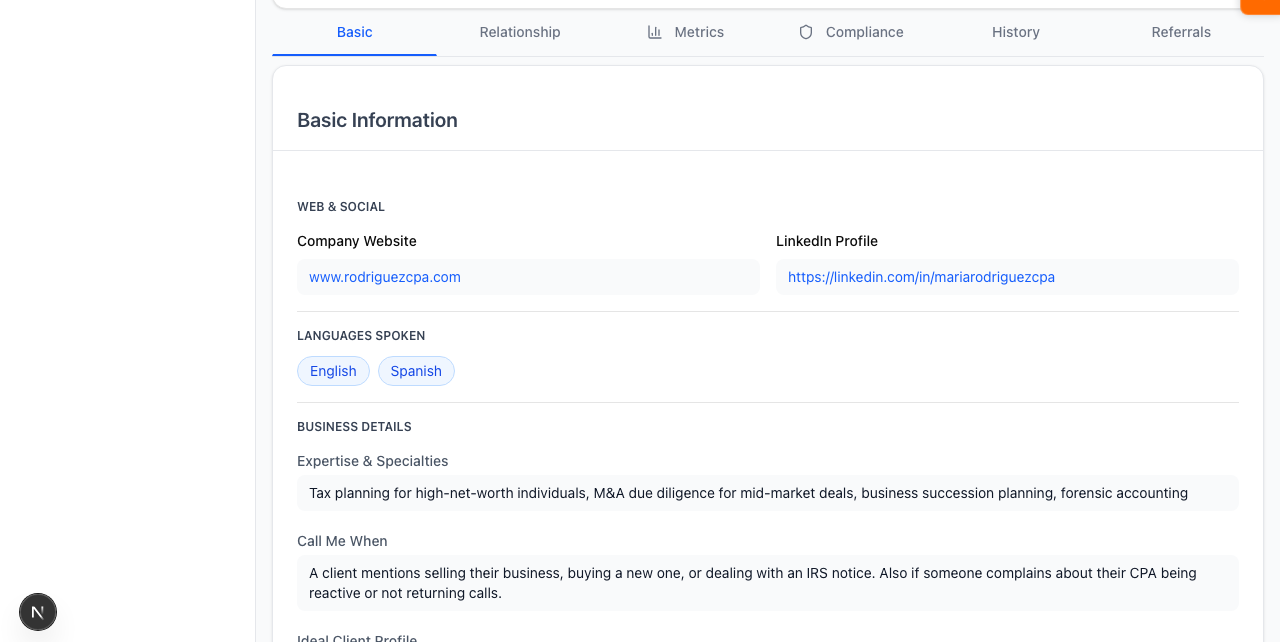
Pasting a LinkedIn URL into the LinkedIn field at the top of the Basic tab triggers an auto-fill that fills any blank fields from the partner's public profile. Anything you've already entered stays put. Useful for partners you added quickly with just a name and email.
Manage your relationship details
Where to find it: Sidebar → Partners → click a row → Relationship tab.
The Relationship tab is where the private, in-your-voice notes live. These fields are visible only to you, never to the partner:
- Where you met and the date.
- How you know them in a few sentences.
- Their birthday and any personal notes (family, hobbies, preferences).
- The introduction paragraph in your own words. This is the field that drives the warmth of every intro draft your assistant writes for this partner.
- Strengths and goals. What they're great at, what they're working toward.
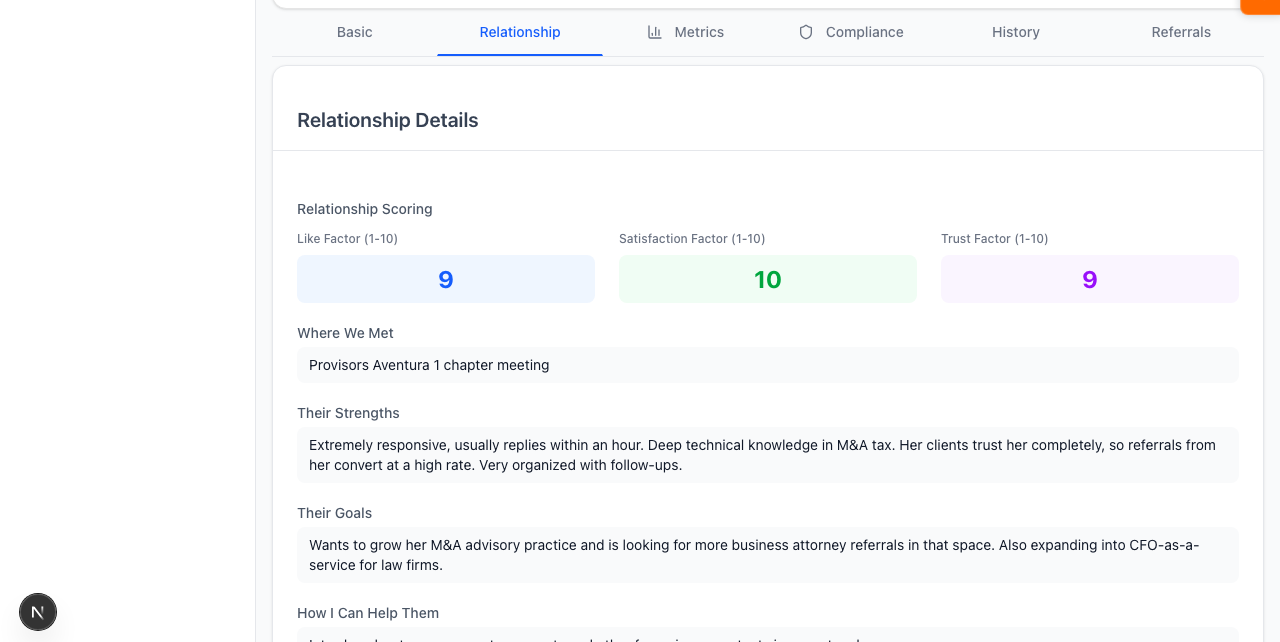
The single highest-leverage field on this tab is the introduction paragraph. Spend two minutes writing one for your top ten partners and the intro drafts your assistant produces stop sounding generic. The Generate button on the field writes a first draft you can edit.
Read the metrics
Where to find it: Sidebar → Partners → click a row → Metrics tab.
The Metrics tab is the data view of the relationship. The KPIs at the top show referral counts (sent and received), win rate, average referral value, average response time, days since last contact, and the reciprocity indicator (whether referrals between you and the partner are roughly balanced or one-sided).
Below that is the Recommended Actions panel: the assistant's ranked list of what to do next for this specific partner. Examples: send a follow-up on a stale referral, schedule a check-in, log the outcome of a recent intro.
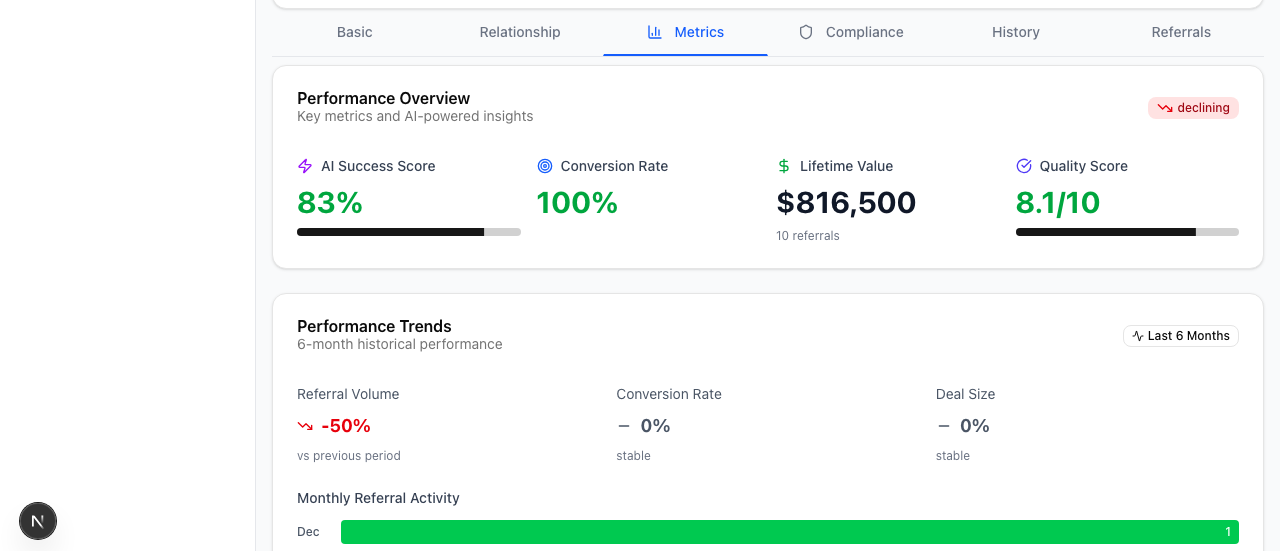
The Recommended Actions panel is the most useful part of the page. It's the assistant's view of "if I were you, here's what I'd do for this person next." Working that panel for your top ten partners once a month keeps the relationships fresh.
Browse referrals and history
Where to find it: Sidebar → Partners → click a row → Referrals tab or History tab.
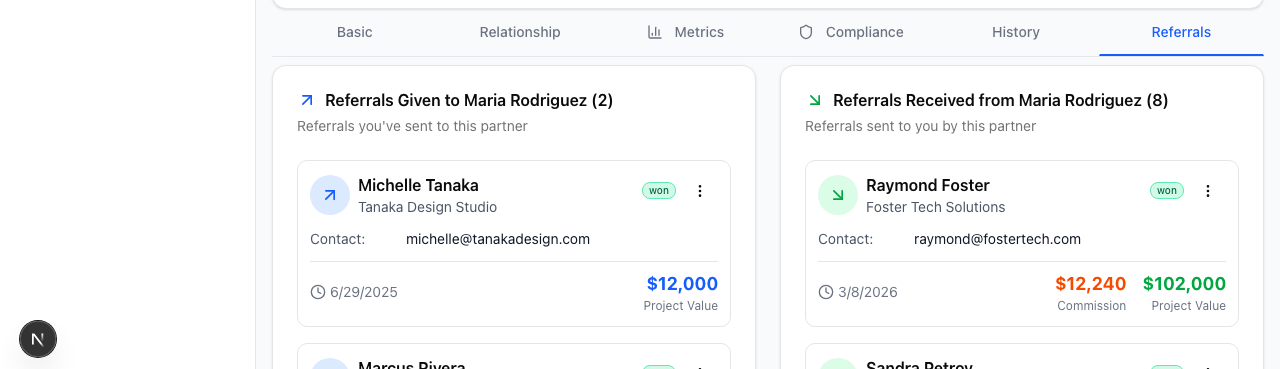
The Referrals tab lists every referral between you and this partner, sent and received, with status, dollar value, and a click-through into the referral detail page. Use the Update button on any open referral to push a status change without leaving the page.
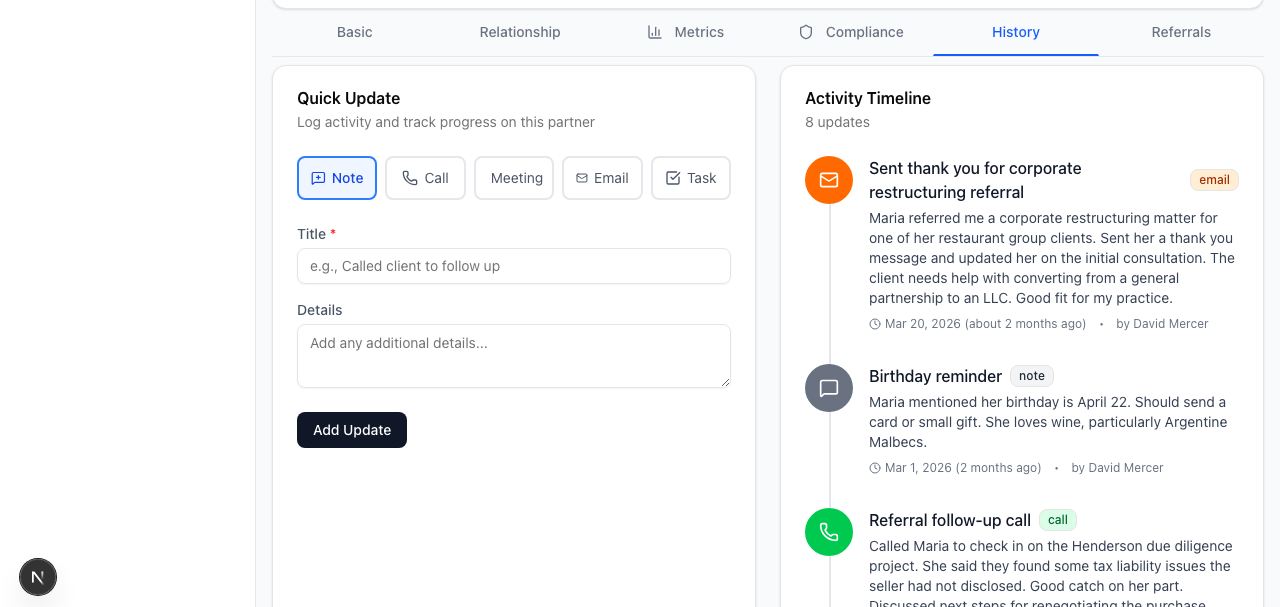
The History tab is the activity timeline: every event involving this partner in chronological order. Referrals logged, intros sent, meetings recorded, emails sent through the action queue, status updates, profile syncs. Useful for catching up on a partner you haven't worked with in a while.
Manage compliance
Where to find it: Sidebar → Partners → click a row → Compliance tab. The tab only appears when the partner has a profession type that has compliance requirements (attorneys, advisors, agents).
If you exchange commissions or fees with this partner, the Compliance tab is where you upload their W-9, log referral arrangement agreements, and track payments. See the compliance articles for the full walkthrough; this tab is one entry point.
By voice or in chat
Where to find it: Top of any dashboard page → AI Chat button.
The assistant can read and update most of what's on this page.
Tell me about Sarah Chen.
What's the last thing I did with Marcus Johnson?
Set Patricia Hoffman's introduction paragraph to "Patricia is a commercial real estate attorney with twenty years of experience who only takes on clients she believes in."
Open Sarah Chen's profile.
The assistant pulls the relevant section, and for updates it makes the change after you confirm.
Get more out of your assistant
A few fields on the partner detail page do the most for the recommendations the assistant makes about this specific partner:
- Type of business on the Basic tab. Drives the partner-suggestion logic, intro pairing, and gap-finding.
- Desired Referral Partner Types on the Basic tab. Drives who you should refer to this partner, surfaced on intro pairings and dormant-partner alerts.
- Introduction paragraph on the Relationship tab. Drives the warmth and accuracy of every intro draft the assistant writes for this partner.
- Activity logged. Every referral, intro, meeting, and email logged against this partner refines the assistant's read on the relationship. The more activity is in the timeline, the more specific the Recommended Actions get.
When the partner is also a ReferralPulse user (you'll see a green dot on their avatar), the data flow is two-way. Updates they make to their own profile show up as a Partner Update alert in your bell, and you can sync the changes you want into the partner record on your side. See Alerts and notifications.
On the iOS app
Where to find it: Bottom navigation → Partners tab → tap any partner card.
The mobile detail page is the same six tabs, optimized for a phone screen. Inline edits work the same way (tap a field with a pencil to edit). The Recommended Actions panel is the most useful part of the page on mobile because it gives you one-tap actions to clear without scrolling through the rest.
On iOS, the fastest way to update a partner's notes after a conversation is to ask the assistant: "add a note to Sarah Chen, met for coffee, she's expanding into commercial real estate and wants intros to commercial brokers." The assistant updates the personal notes and the desired referral types in one go.