Growing your network
Adding the partners you already work with is step one. Step two is growing the network: asking the partners you already trust to recommend their best contacts, browsing the directory of other ReferralPulse members, and visualizing what your network actually looks like so you can see where it's strong and where it has gaps. There are two pages for this work.
Where to find it
There are two related entries in the sidebar.
- Grow Network opens the Expand Your Network page at
/dashboard/network. This is where you go when you want to add new partners, ask for recommendations, or browse the in-app directory. - My Network opens the connection graph at
/dashboard/my-network. This is where you visualize the network you already have and see who's contributing what.
Methods
Ask your network for a recommendation
Where to find it: Sidebar → Grow Network → Ask Your Network tab.
This is the highest-quality way to find a new partner: ask the partners you already trust who they'd recommend. Describe what you're looking for, optionally add a city, and the request goes out to the partners you choose. They reply through ReferralPulse with names and contact info.
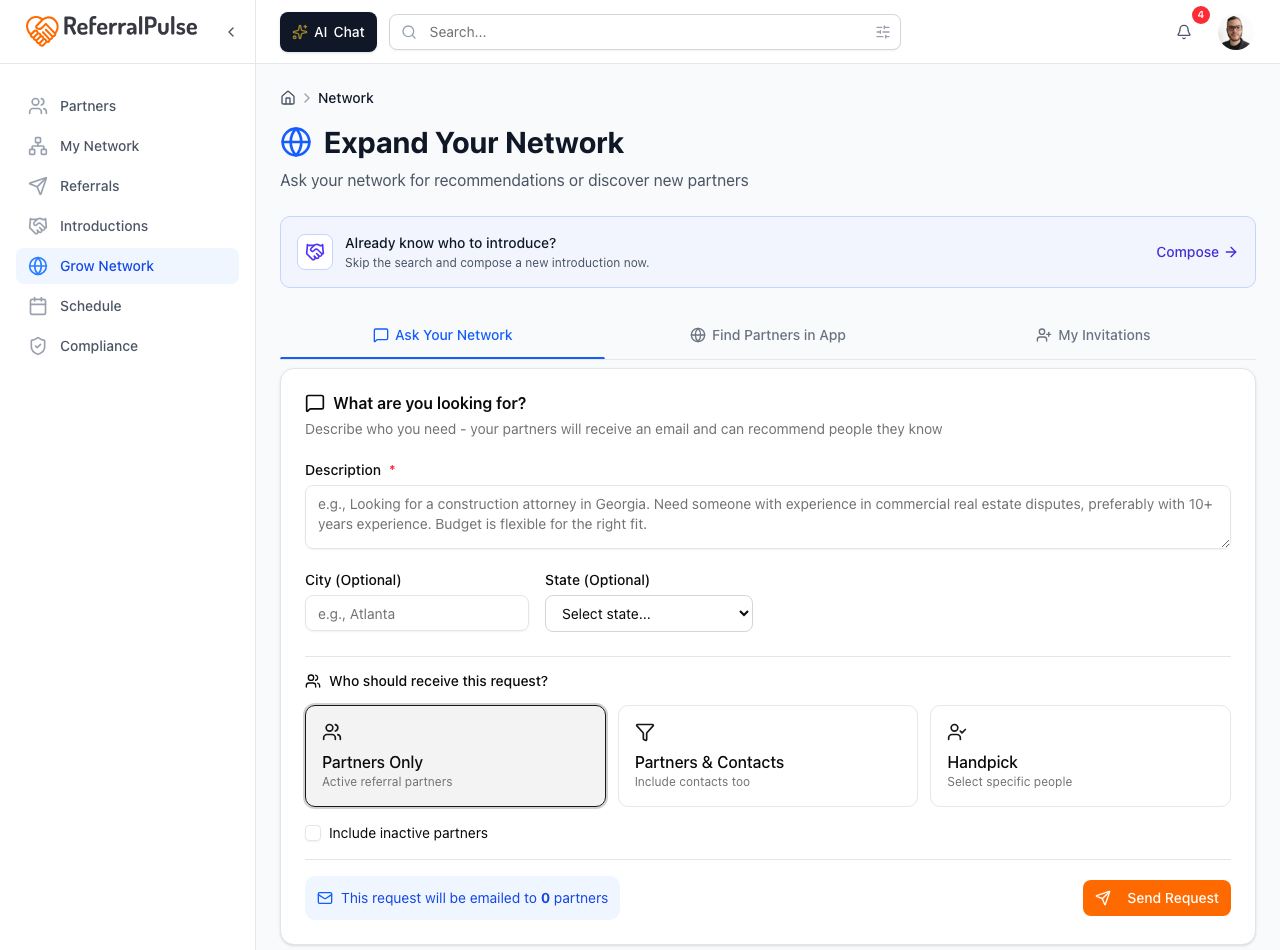
- Open Grow Network and pick the Ask Your Network tab.
- In the Description field, describe who you need: profession, specialty, location, anything that matters. The placeholder shows an example like "Looking for a construction attorney in Georgia. Need someone with experience in commercial real estate disputes."
- Add a City if relevant.
- Pick the partners you want to ask. You can search by name or company.
- Submit. Each partner you picked gets an email asking for their recommendation. Replies come back into the My Past Requests card on the same tab so you can see who's responded.
The clearer the description, the better the recommendations you get back. Two extra sentences naming your target client size, geography, or specialty produces far better matches than one vague sentence. Treat this like writing a tight job spec.
Find partners already on the platform
Where to find it: Sidebar → Grow Network → Find Partners in App tab.
The Find Partners tab is the in-app directory. Other professionals who use ReferralPulse and have made their profiles visible appear here, searchable by name, specialty, or location. When you find someone you'd like to add, send a connection request. If they accept, they become a connected partner in your network and your relationship card on their side starts populating.
The search is most useful when you filter by specialty rather than name. "CPA" or "estate attorney" with a city returns the local specialists who are also on ReferralPulse. The directory grows as the user base grows.
Manage incoming connection requests
Where to find it: Sidebar → Grow Network → My Invitations tab.
When another ReferralPulse user invites you to connect, the invitation lands here. The My Invitations tab shows pending requests with a count badge in the tab. You can review who they are, what they do, and accept or decline.
The same tab shows requests you sent to other people, so you can see who has and hasn't responded yet.
Visualize your network
Where to find it: Sidebar → My Network.
The My Network page is the visualization layer. It has three tabs.
- Graph. Every partner is a node, every intro and referral is a connection. The map clusters partners by how they're related: who introduced whom, who refers business to whom, who connects to whom. Click any partner in the graph to see what they've contributed and what to do next.
- Actions. The action queue ranked across your whole network: who needs a check-in, who deserves a thank-you, who you should make an intro for. Same shape as the home dashboard's Act on These card, just deeper.
- Untapped. Partners in your network who haven't yet contributed an intro or a referral, ranked by likely value. Useful for spotting people you've added but never actually used.
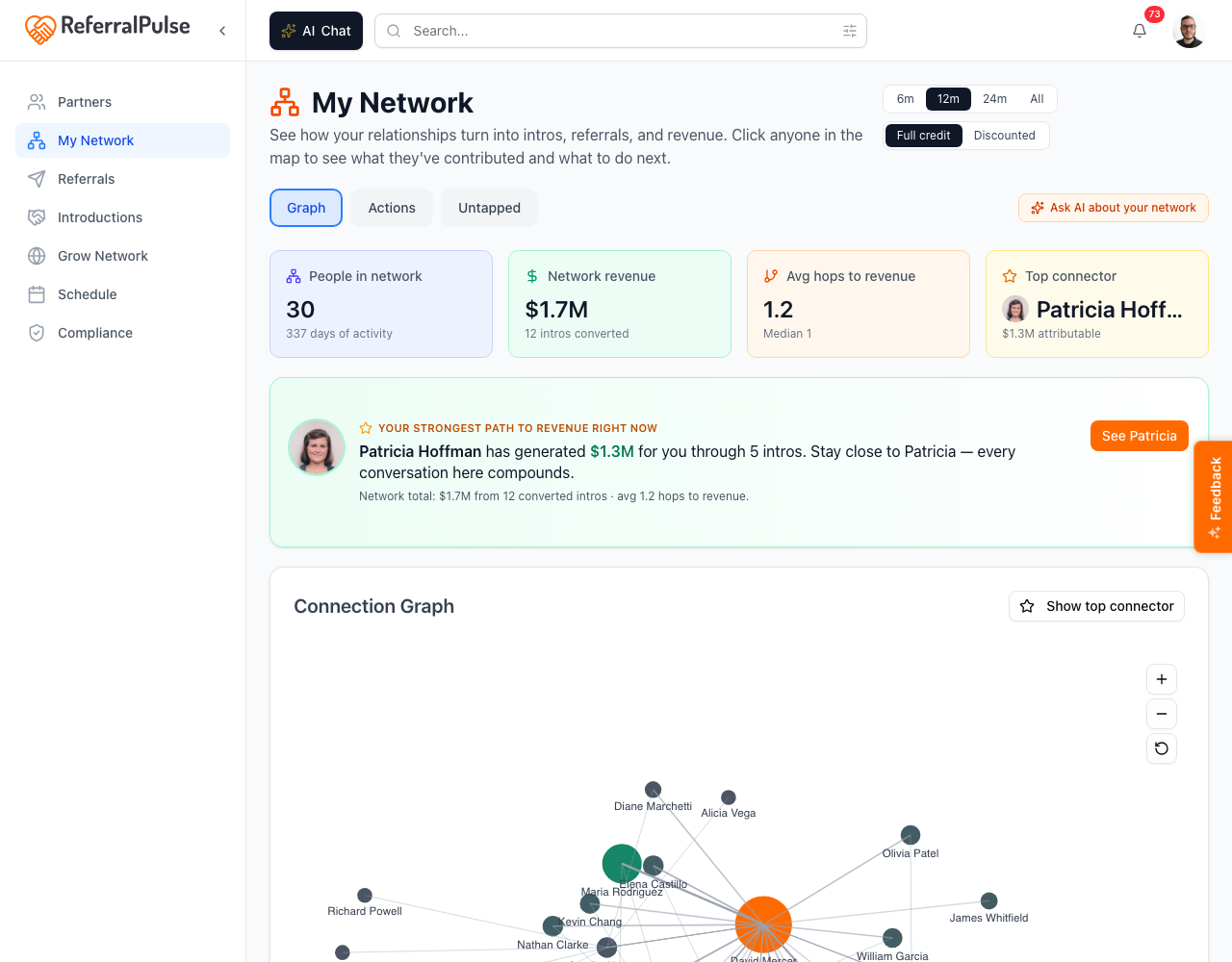
The page also has a timeframe selector (12 months by default, flip to 6, 24, or All) and an attribution mode toggle on the Graph tab: Full credit gives every link in the chain credit for downstream revenue, Discounted weights closer connections more heavily.
The header also surfaces "Your strongest path to revenue right now" callout that names the partner who has generated the most attributable revenue for you and offers a one-click drill-in.
The Untapped tab is the fastest way to find partners you've added but never actually used. Each row tells you why the partner is rated likely-valuable, and you can act from there: send a referral, ask for an intro, or schedule a check-in. The graph view makes the same gaps visible spatially if you prefer that lens.
By voice or in chat
Where to find it: Top of any dashboard page → AI Chat button.
The assistant can drive most of this section.
Find a real estate attorney in Atlanta on ReferralPulse.
Ask Patricia, Sarah, and Marcus for a recommendation for a structural engineer in Tampa.
Send a connection request to David Park.
Who in my network connects me to the most other people?
The assistant uses the same in-app directory and connection request flow you'd use by hand, plus it can pull insights from the network graph without you opening the visualization.
Get more out of your assistant
The Grow Network suggestions and the Untapped rankings on the My Network page both depend on the same fields that drive partner suggestions elsewhere in the app:
- Type of business on each partner.
- Desired Referral Partner Types on each partner (the field that says who they want to be referred to).
- Referral and intro history between you and the partner.
When these are sparse, the suggestions are generic. When they're filled in, the suggestions get specific and useful.
The single fastest way to improve the quality of every Grow Network suggestion is to fill in Desired Referral Partner Types on your top ten partners. Five minutes there shapes every recommendation downstream.
On the iOS app
Where to find it: Bottom navigation → tap My Network or the menu, depending on the build.
The mobile experience is voice-friendly for asking your network for recommendations. Tap the Chat tab and dictate:
Ask my Tampa attorneys if they know a good commercial litigator. I need someone for a client by next week.
The assistant identifies which partners qualify, drafts the email asking for the recommendation, shows you the draft to confirm, and sends.
The graph view is also available on mobile but easier to read on a tablet or laptop.
Voice is great for connection requests too. "Send a connection request to David Park, the CPA I met at the chamber breakfast" works as long as David has a public ReferralPulse profile.