Importing partners from a CSV or vCard
If your contacts already live in Google Contacts, Outlook, Apple Contacts, or a CSV you exported from another tool, you can bring a batch of partners into ReferralPulse in one go instead of typing them one by one. The import handles CSV (.csv) and vCard (.vcf) files, auto-detects exports from Google and Outlook, lets you map any column to any partner field, and decides what to do when a row matches a partner you already have.
Where to find it
Where to find it: Sidebar → Partners → Import Partners button (top right of the Partners page) → on Build Out Your Network, click the Upload contacts file card → Upload.
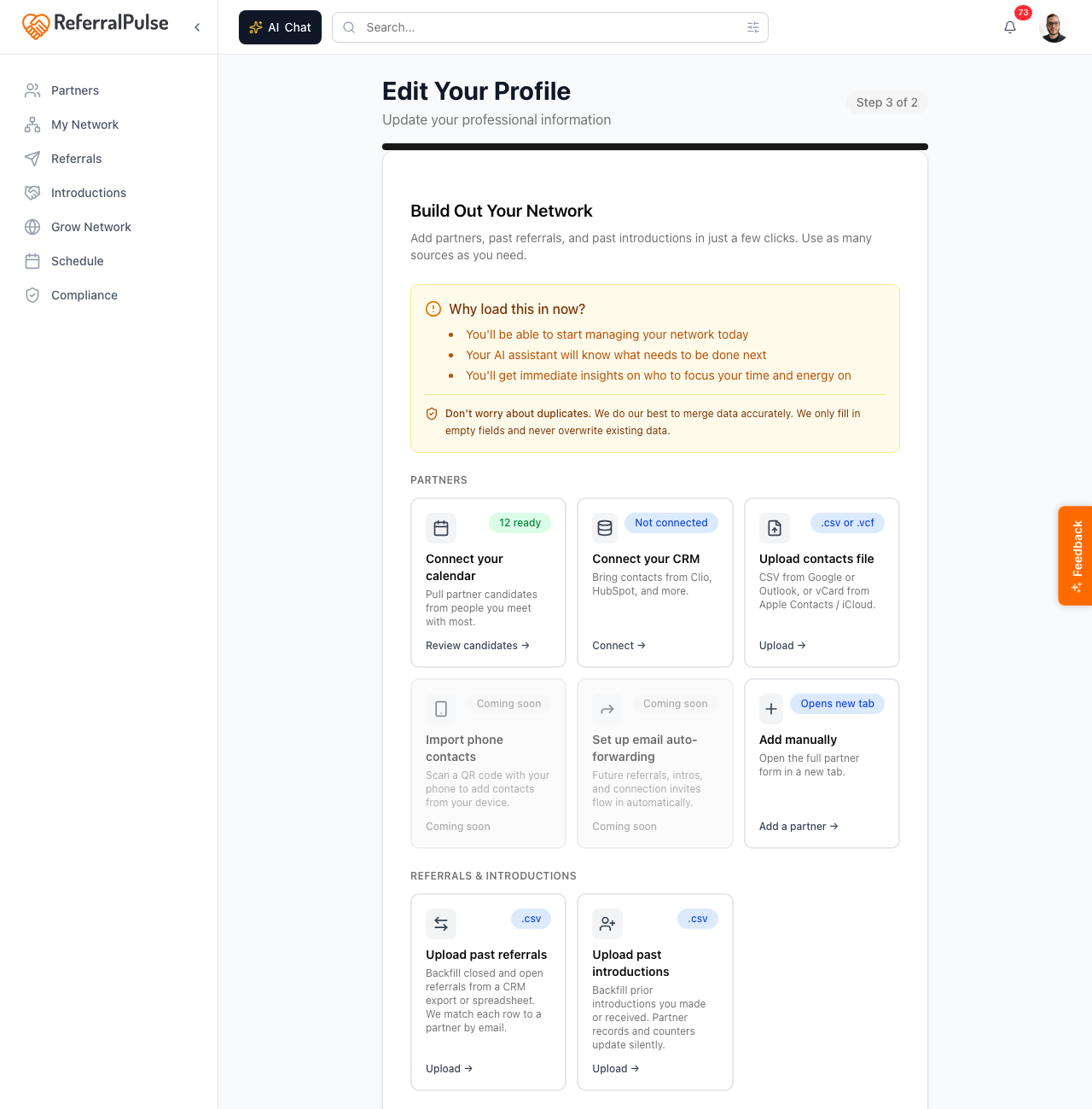
What you'll be asked
The dialog walks you through three steps: Upload, Mapping (or Review for vCards), and Import. A progress bar across the top tracks where you are.
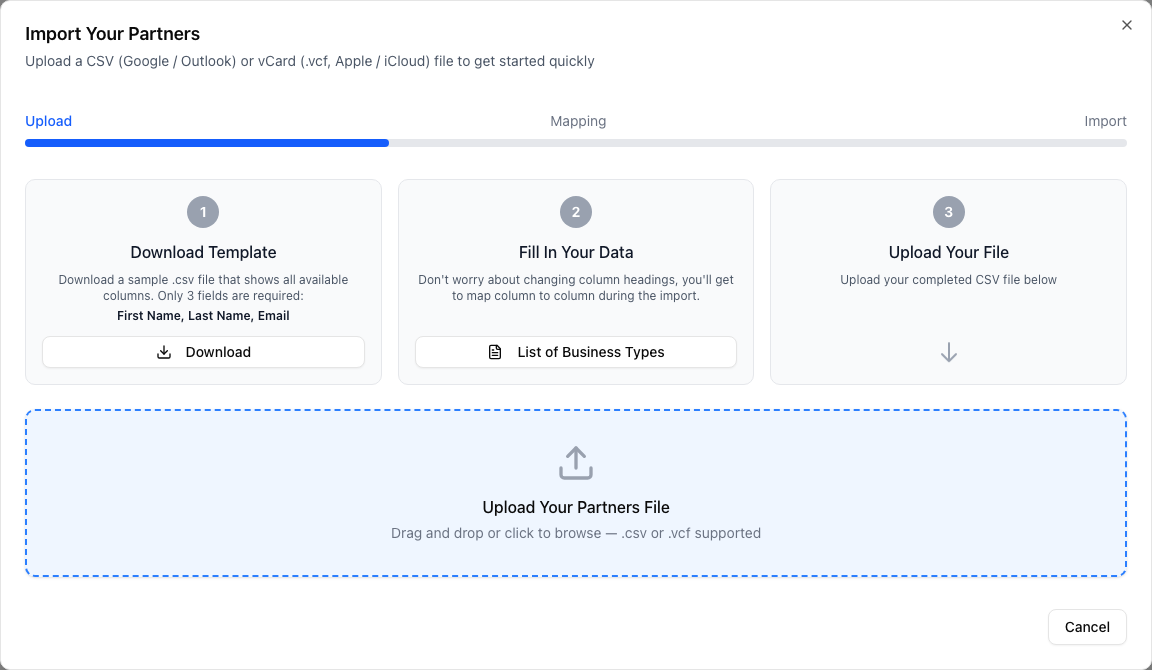
Step 1: download the template (optional but recommended)
The first card is Download Template, which gives you a sample .csv file showing every column you can fill in. Only three fields are strictly required: First Name, Last Name, and Email. Everything else is optional.
If you already have a CSV from somewhere else, skip the template. The mapping step in the dialog handles columns named anything, in any order. The template is just a starting point if you're building the file from scratch.
Step 2: fill in your data
You don't have to rename your columns to match the template. The dialog auto-detects exports from Google Contacts and Outlook Contacts and pre-maps the columns it recognizes. For everything else, you'll do the matching in step 3.
If your file has a column for a list-type field (like networking groups or service areas), separate values with commas inside the cell. The import will split them into the right shape.
For columns that need to match a specific value (like Type of Business or referral status), the dialog has a List of Field values button on the second card that opens a popover with every allowed value. Use one of those exactly, or leave the cell blank to fall back to the default.
Step 3: upload the file
Drag the file onto the upload area, or click to browse. The dialog accepts .csv for everyone and .vcf (vCard) for the partner import. Apple Contacts and iCloud both export to vCard.
Methods
Map your columns to partner fields
Where to find it: After upload, the dialog moves to the Mapping step automatically.
This is where you tell the import which CSV column means what. Each row in the table is one column from your file:
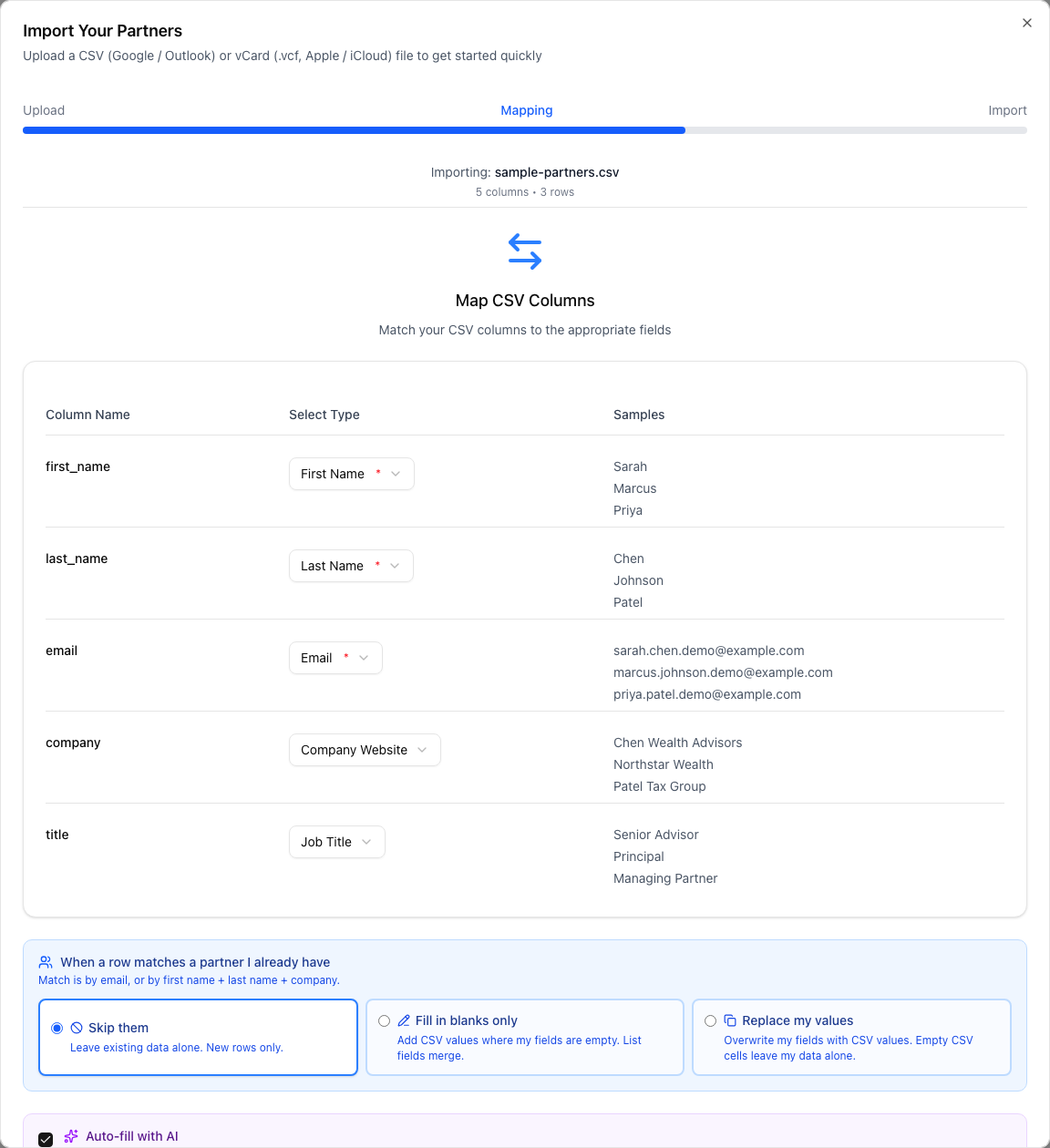
- Column Name. The header from your CSV.
- Select Type. A dropdown of every partner field you can map to. The required fields (First Name, Last Name, Email) are marked with a red asterisk. Pick Don't import to drop the column entirely.
- Samples. The first three real values from that column, so you can verify you're matching the right thing.
If the dialog detected a Google Contacts or Outlook export, you'll see a small green banner at the top saying so, and most of the columns will already be pre-mapped. Tweak anything that looks wrong, then continue.
If you haven't mapped one of the required fields, the dialog shows an amber alert at the bottom of the table. You can't proceed until you do.
If your CSV has a column that doesn't fit any partner field (an internal note, a deal stage, a tag system from another CRM), set it to Don't import rather than forcing it into a field where it doesn't belong. You can always add custom notes to a partner manually after import.
Choose how duplicates are handled
Where to find it: Bottom of the Mapping step (or the Review step for vCards), in a blue panel labeled When a row matches a partner I already have.
This is the most important choice in the import, and it's where users get bitten if they don't read carefully. The dialog matches a row to an existing partner by email, or by first name plus last name plus company if there's no email. Then you choose what to do:

- Skip them. Leave existing data alone. Only brand-new rows get added. Use this if your CSV is mostly people you already have and you just want to pick up the few you're missing.
- Fill in blanks only. For matched rows, fill in any field where your existing partner record is blank. Anything you've already filled in stays untouched. List fields (like services offered) merge instead of replacing. This is the safest option and the one most people want.
- Replace my values. Overwrite your existing fields with whatever's in the CSV. Empty CSV cells leave your data alone, but any non-empty CSV cell wins. An amber warning appears below the panel reminding you this can't be undone. Use this only when the CSV is the authoritative source of truth.
If you're in doubt, pick Fill in blanks only. It's the option that respects work you've already done in the app and only adds what's missing. Replace my values is fine for the first import after you've left another CRM, but rarely the right choice on an ongoing basis.
Auto-fill new partners with AI (optional)
Where to find it: Bottom of the Mapping step, in a purple panel labeled Auto-fill with AI.
If your CSV has LinkedIn URLs in any of the rows, ticking this box queues those partners for auto-enrichment after the import finishes. Your assistant pulls in the rest of the profile (headline, company overview, expertise, headshot) from each LinkedIn URL in the background. You'll get a notification when the enrichment is done.
The enrichment runs after the import lands, so you can close the dialog and keep working. There's no charge per row, you don't need to wait, and your partners show up enriched the next time you open them.
Even if you don't have LinkedIn URLs for everyone in your CSV, leave this on. Your assistant will only enrich the rows that have URLs and skip the rest, no harm done.
What you will see
When you click Import Partners, the dialog moves to the Importing step (a progress spinner) and then to the Complete step. Four count tiles across the top tell you what happened:
- Imported. Brand-new partners created.
- Updated. Existing partners modified (only shows if you used Fill in blanks or Replace).
- Skipped. Rows that matched an existing partner and you chose Skip.
- Errors. Rows the import couldn't process, usually because of a missing required field.
Below the count tiles you may see one or more follow-up cards:
- Existing Users Found. Some of the imported partners are already on ReferralPulse. Connection requests went out to them automatically.
- Profiles Matched. Some imported partners matched existing public ReferralPulse profiles, and the import filled in their public data automatically.
- AI Enrichment Queued. If you ticked Auto-fill with AI and you had partners with LinkedIn URLs, they're queued for enrichment now.
- Invite Partners to Connect. If your imported partners have email addresses but aren't ReferralPulse users yet, you'll see a card offering to send them invites in bulk. You can skip and send invites later.
If a few rows show as Errors, it's almost always because the email field is blank for those partners. Fix the email in the source file, re-export, and run the import again. The dialog is idempotent, so re-importing won't duplicate the rows that already came in.
On the iOS app
Where to find it: Bulk import is desktop-only today.
The CSV and vCard import dialog isn't available on the phone. If you need to import a batch on the go, ask your assistant in the Chat tab to add partners one at a time:
Add Sarah Chen as a partner. CPA at Smith and Co, met her at the chamber breakfast.
For larger imports, save them for when you're at a desk. Your assistant adds partners one at a time fast enough that adding three or four by voice is reasonable, but a hundred-row CSV is the wrong tool for a phone.