The action queue
The action queue is where ReferralPulse stages every email it has drafted on your behalf so you can review and send them. Thank-you notes for received referrals you haven't acknowledged. Status updates for partners on referrals you haven't told them what happened on. Pre-meeting prep briefs. Reach-outs to partners you've gone quiet with. Each one comes pre-written with the partner, the context, and the relevant history baked in.
You always review the draft before it goes out. The app never sends anything on your behalf without you clicking the send button.
Where to find it
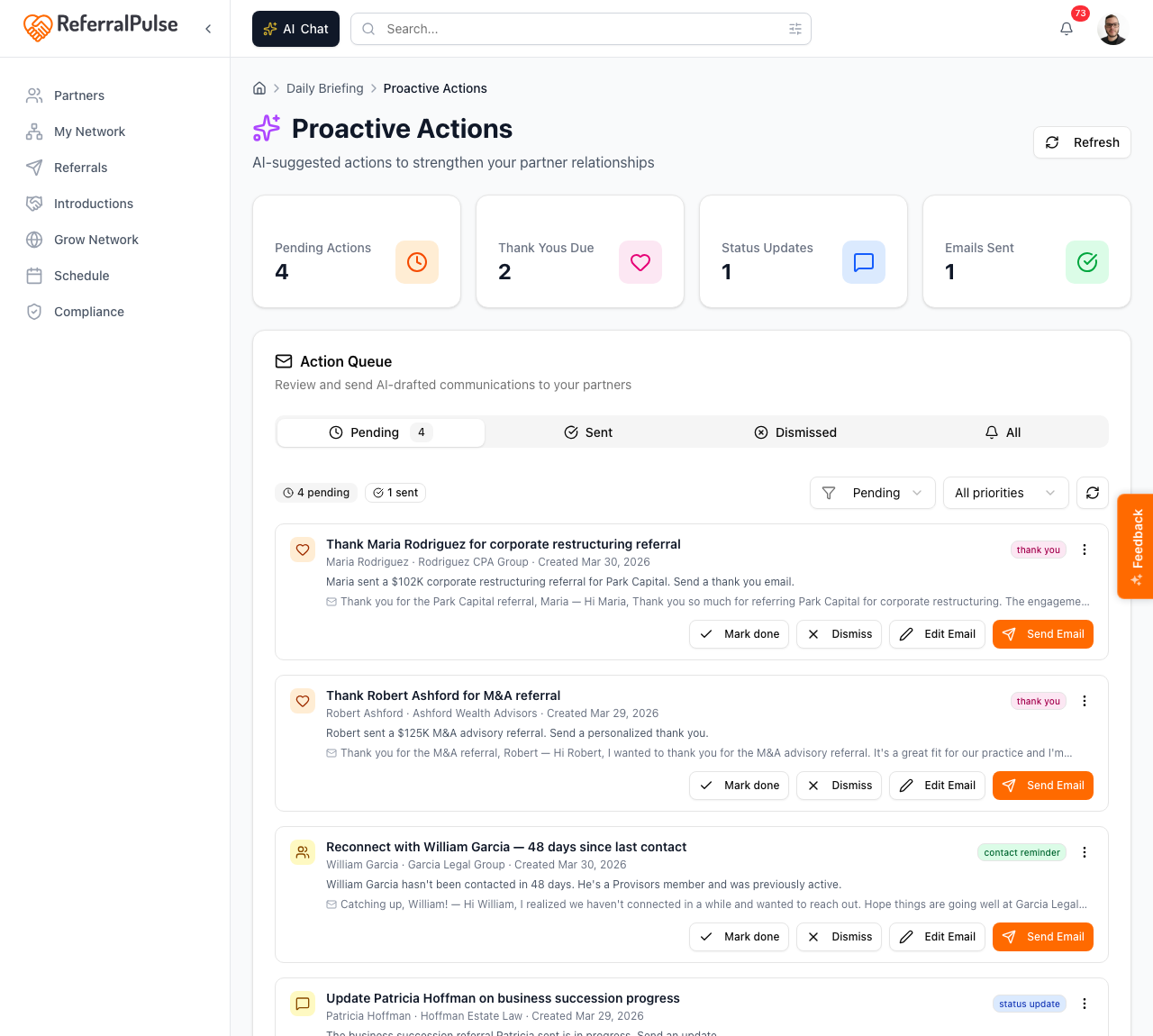
Where to find it: Top right avatar → Actions. Direct URL: /dashboard/actions. The page header is Proactive Actions with a Refresh button on the right.
You can also reach the queue from two other places:
- The Stay Ahead card on the home dashboard, via the Review Actions button.
- The bell icon in the dashboard header. Pending action drafts show up at the top of the dropdown under Proactive Actions, with a count badge on the bell. Click any item to open the queue.
What's in the queue
The queue surfaces three main types of drafts:
- Thank yous for received referrals you haven't acknowledged yet. The draft thanks the partner who sent the referral by name and references the client.
- Status updates for referrals where you haven't told the partner what happened. If a referral closed as won, the draft shares the good news. If it's still open after a while, the draft gives the partner an honest update so they aren't left wondering.
- Stay-in-touch reach-outs to partners you haven't been in touch with for a while. The draft is short, friendly, and doesn't pretend to have a business reason if there isn't one.
There are also occasional one-off drafts for things like pre-meeting prep briefs and intro nudges. The four KPI tiles at the top of the page give you running counts: Pending Actions, Thank Yous Due, Status Updates, Emails Sent.
Methods
Review and send a draft
Where to find it: Avatar → Actions → Pending tab.
The Pending tab is the work view. Each row shows the draft type (thank-you, status update, etc.), the partner the email is going to, the subject line, and the first few lines of the body. Click into a row to expand the full draft.
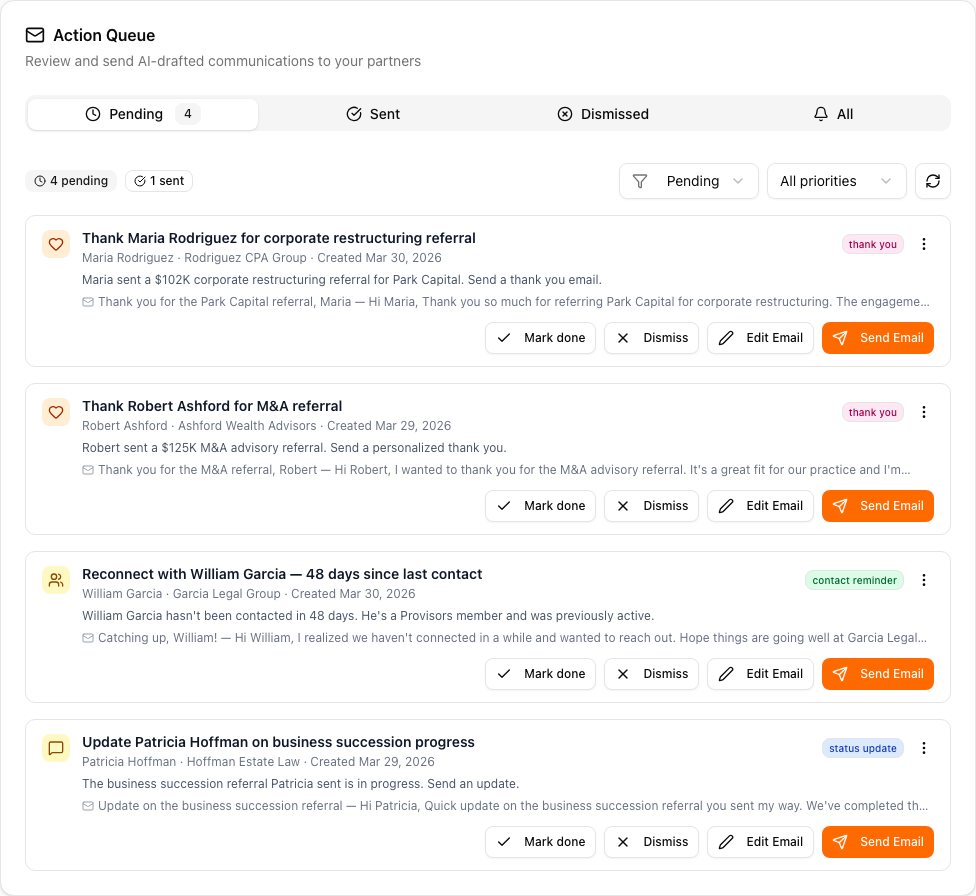
Each draft has four buttons along the bottom:
- Send Email. Sends the draft as-is to the partner via email. The send is immediate, no further confirmation.
- Edit Email. Opens the draft for inline editing. You can change the subject, the body, or both. When you're happy, click Send Email.
- Mark done. Removes the draft from the pending queue without sending. Use this when you've handled the action by other means (a phone call, a text, an in-person reply).
- Dismiss. Removes the draft from the queue. Use this when the action is no longer needed (the deal closed differently than expected, the partner is no longer relevant, etc.).
The drafts are short on purpose. A two-sentence thank-you that goes out today is worth more than a three-paragraph thank-you that you keep meaning to write. Send first, then edit only if something is off.
Review what you've sent or dismissed
Where to find it: Avatar → Actions → Sent tab, Dismissed tab, or All tab.
- Sent lists drafts you've already sent, with the date and the partner. Useful for checking what you said when a partner replies.
- Dismissed lists drafts you discarded, in case you change your mind.
- All lists every draft regardless of state, with filters at the top to slice by partner, type, or status.
Quick triage from the bell
Where to find it: Top right of any dashboard page → bell icon in the header.
If you only want to peek at what's pending without leaving the page you're on, click the bell. The notifications dropdown shows the top three pending actions with one-click open into the full queue. View all alerts at the bottom takes you to the Alerts page (a different surface, see Alerts and notifications).
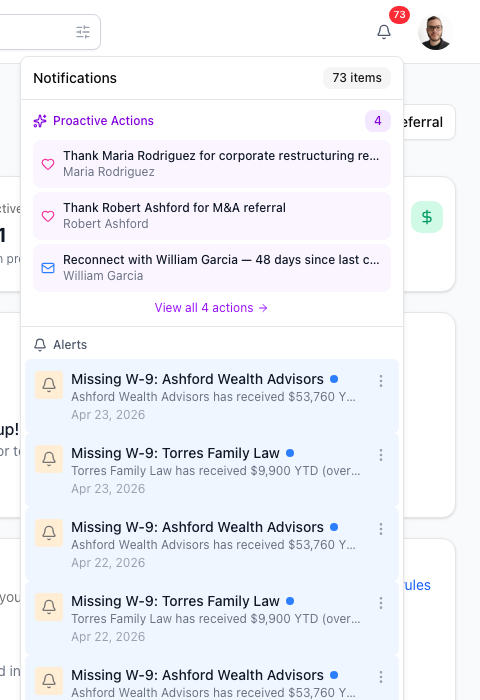
If the bell badge gets large, that usually means you have several days of unsent thank-yous and status updates piled up. Five minutes in the queue once a week clears it without ceremony, and your partners notice the consistency more than they would notice any individual message.
By voice or in chat
Where to find it: Top of any dashboard page → AI Chat button.
You can ask the assistant about the queue or have it draft new messages for you outside the queue.
What thank-yous do I owe?
Draft a thank-you to Patricia for the Greenmark referral.
Send the pending thank-you to Sarah.
The assistant pulls from the same queue and can send drafts on your confirmation. Anything sent through chat shows up in the Sent tab.
Get more out of your assistant
The drafts in the queue are only as good as the context the assistant has on each partner and each referral. A few things shape them most:
- Partner introduction paragraph. A short, in-your-voice description on each partner. Drives the warmth of the drafts. Without one, the prose is generic.
- Referral status accuracy. Stuck Open referrals from months ago produce stale status-update drafts. Marking referrals Won, Lost, or Declined as they actually resolve keeps the queue clean.
- Last contact dates. When you log a referral, send an intro, or mark a meeting attended, the assistant updates its sense of when you last touched a partner. Stay-in-touch drafts are based on these signals, so logging activity in the app is what makes the dormant-partner reach-outs land at the right moment.
If a draft sounds wrong, the fastest fix is usually to edit it and send. The same draft will be improved next time the same situation comes up because the assistant learns from the patterns of what you send vs dismiss.
On the iOS app
Where to find it: Bottom navigation → Actions tab, or via the bell icon in the iOS header.
On iOS the queue is a streamlined card feed. Each draft is a card you swipe or tap. Send, Edit, Snooze, and Dismiss are inline buttons under each card. Voice works for review, edit, and send the same as on desktop.
The mobile queue is where the queue actually pays off. Five minutes during your morning coffee, or between meetings, clears the backlog faster than sitting at your desk does. Voice-edit a draft if it needs a tweak, then send.