AI Chat Assistant
The AI Chat Assistant is the conversational way to use ReferralPulse. You ask it a question or tell it to do something, and it answers or performs the action. It's faster than the forms for almost everything, especially on mobile, and it's the primary interaction model on the iOS app where you can talk to it instead of typing.
You don't need to learn what to ask. Speak the way you'd describe the situation to an assistant who already knows your network. The chat figures out which feature you need and either does the work or asks the one or two follow-up questions it needs.
Where to find it
Where to find it: Top of any dashboard page → AI Chat button (dark button with a sparkle icon, to the left of the search bar). Direct URL: /dashboard/voice-chat. On the iOS app, it's the Chat tab in the bottom navigation.
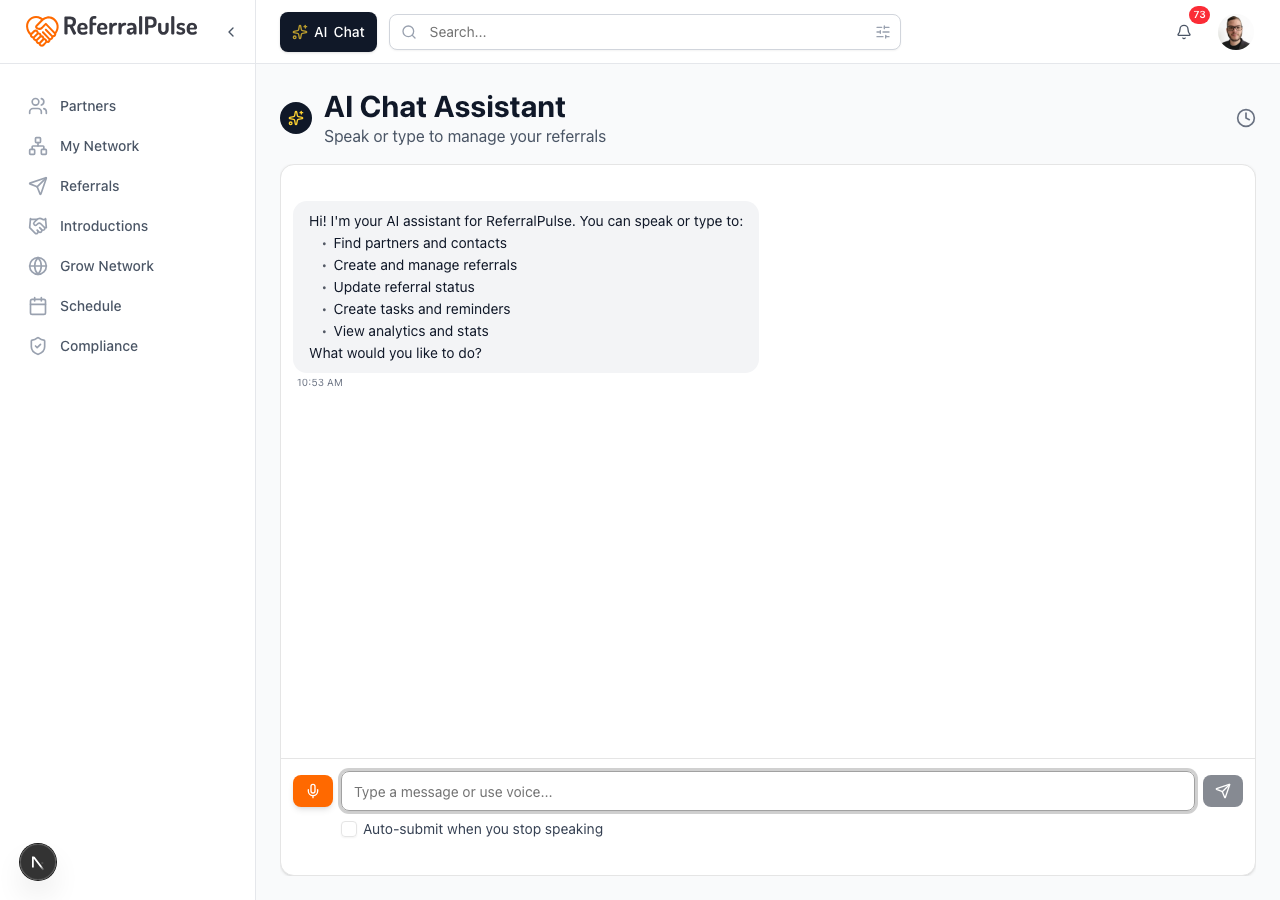
How to ask things
The input bar at the bottom has a microphone (orange when listening) and a text field. You can:
- Tap the microphone and speak. The assistant transcribes you in real time and responds when you stop talking. The Auto-submit when you stop speaking checkbox under the input lets the assistant send without you tapping send (useful when your hands are busy).
- Type into the field if you can't speak out loud (in a meeting, in a quiet office, on a flight without a mic). Press Enter or tap the send button to submit.

There's no command syntax to learn. The assistant figures out intent from natural phrasing.
What you can ask it to do
The assistant can do almost anything you'd otherwise do by clicking through the app. The patterns below are not an exhaustive list, just the most common.
Add and find partners
Add Sarah Chen as a partner, she's a CPA at Smith and Co in Tampa, met her at Provisors last Tuesday.
Find Marcus Johnson.
Show me my CPAs in Florida.
Log and update referrals
Sarah Chen referred a client named Mark Watts at ABC Corp, his email is mark@abc.com, project around 25 thousand.
Send a referral to Marcus Johnson for a client called Lisa Pham, lisa@phamlaw.com, family law matter.
Mark the Watts referral as won, project came in at thirty grand.
What's the status of the Pham referral?
Make introductions
Introduce Sarah Chen and Marcus Johnson, they should know each other.
Draft an intro between James Doyle and Linda Tanaka.
Check on the network
How many open referrals do I have?
Who's been quiet, that I should reach out to?
Who are my top connectors?
Show me referrals over fifty thousand.
Send connection requests and emails
Invite Sarah Chen to connect on ReferralPulse.
Draft a thank-you email to Patricia Hoffman for the Greenmark referral.
Schedule and tasks
Add a task to call Robert Ashford about the M&A engagement on Friday.
What's on my plate today?
Navigate
Open my partners page.
Take me to compliance arrangements.
Analytics and reporting
What's my conversion rate this quarter?
Show me my referral analytics.
The assistant remembers context within a single conversation. After you say "what's the status of the Pham referral?", you can follow up with "mark it as won" without naming the referral again. It also handles ambiguity. If you say "the Smith referral" and there are two clients with that last name, the assistant lists them and asks which one you meant.
Rich responses
When the assistant returns information, it doesn't just text you back. Where appropriate, it shows a rich card you can act on inline.
- Partner results. Tap a partner card to open their profile, send a referral, or invite them to connect.
- Referral cards. Each result shows the client, partner, status, value, and inline buttons to update status or open the detail page.
- Introduction drafts. When you ask the assistant to draft an intro, it shows the proposed email with Edit, Send, or Cancel buttons before sending anything.
- Network requests. Connection request drafts show the proposed message and the recipient before you send.
Conversation history
Every chat is saved. You can revisit past conversations to pick up where you left off, look up something the assistant told you a week ago, or rerun a query.
Where to find it: Avatar (top right of the dashboard) → AI History. Direct URL: /dashboard/ai-history.
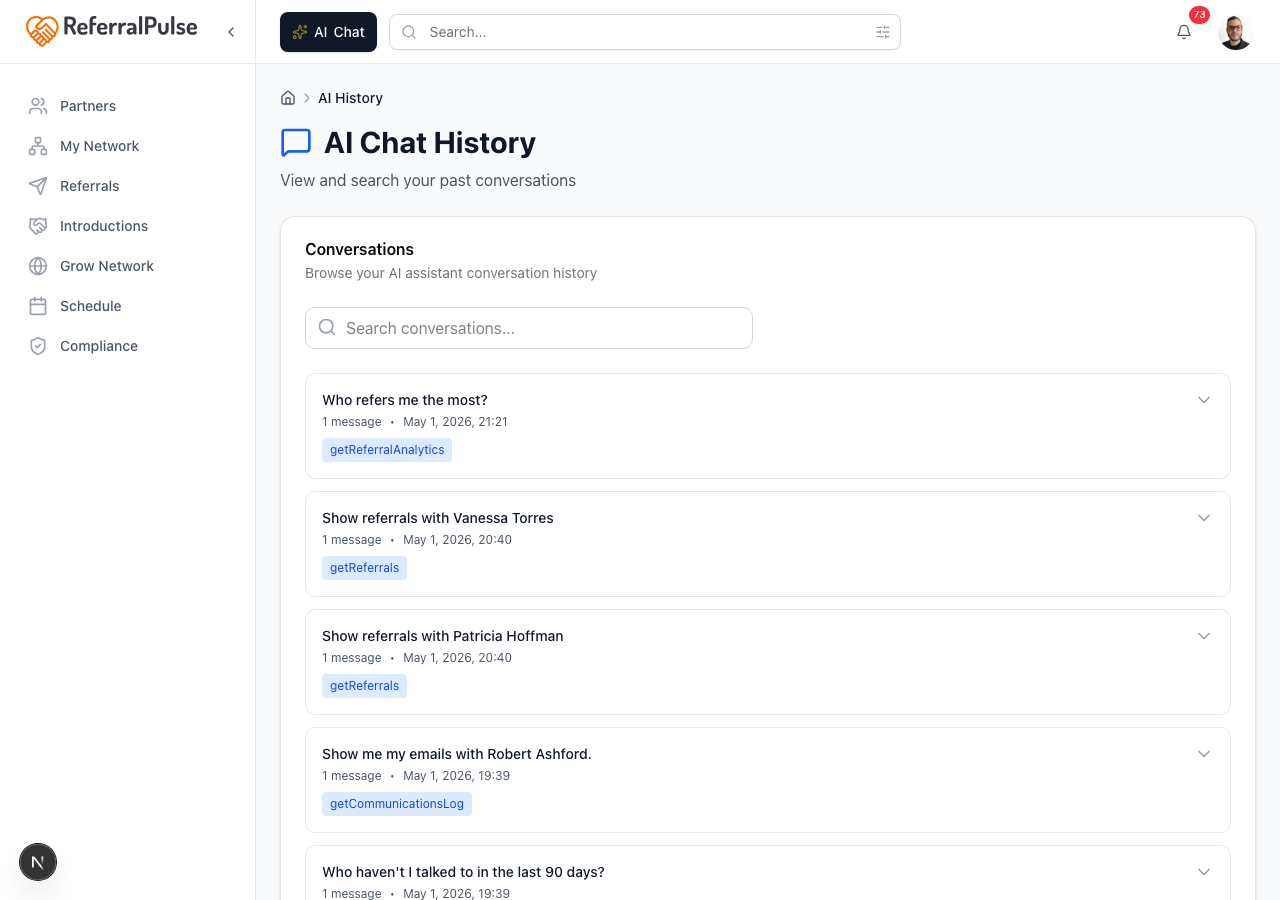
The search bar at the top filters by keyword across the conversation contents. Click any row to open the full thread on the chat page where you can continue the conversation.
Conversations are private to your account. The assistant doesn't share content from your network with anyone outside your organization.
Get more out of your assistant
The quality of your assistant's responses depends almost entirely on how complete your data is.
- Partner profiles. The more your partners' profiles say about who they are, what they do, and who they help, the better the intro drafts, partner suggestions, and answers to questions like "who should I connect Marcus to?" Especially valuable: the introduction paragraph, type of business, and desired referral partner types fields on each partner.
- Referral history. Past referrals (sent and received, won and lost) feed the answers to analytics questions and the dormant-partner alerts. Even logging a dozen back-fills changes the quality of the recommendations.
- Conversation context. Within a single chat, the assistant remembers what you've already said. Across chats, each new conversation starts fresh.
If the assistant's draft emails or intro suggestions ever feel generic, it's almost always because partner profiles are sparse, not because the assistant got it wrong. Spending five minutes filling in introduction paragraphs and desired partner types on your top ten partners changes everything downstream.
On the iOS app
Where to find it: Bottom navigation → Chat tab (microphone icon).
The iOS chat is the same assistant with a more aggressive voice-first design. Tap the microphone, talk, and let go. The assistant responds with voice when it makes sense (short answers, confirmations) and shows the rich card so you can act on it.
Voice is hands-free in the car. After a coffee meeting you can dictate "add Marcus Johnson as a partner, financial advisor at Northstar Wealth, met him at the chamber breakfast Thursday, also send a referral to him for Becky Reyes who needs a 401k review at fifteen thousand budget" and the assistant batches both actions, asks for any missing emails at the end, and confirms once everything is saved.