Global search
Global search is the fast way to jump to a specific partner or referral by name. It lives in the header on every dashboard page, runs as you type, and clicking a result opens that record. It's the keyboard-friendly alternative to scrolling the Partners or Referrals list.
Where to find it
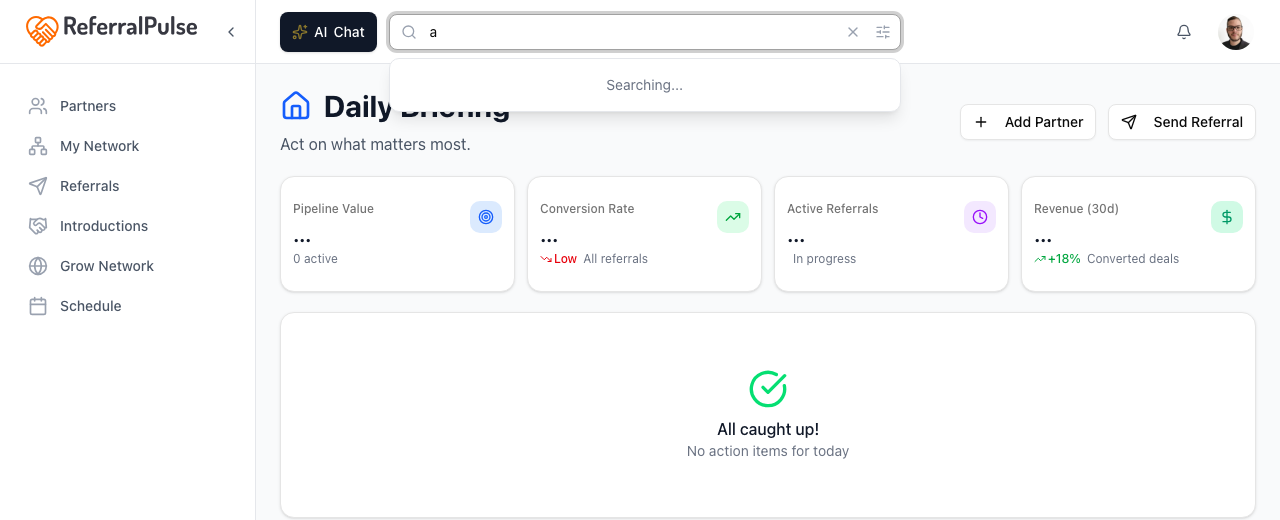
Where to find it: Top of any dashboard page, in the header. The input sits between the dark AI Chat button on the left and the bell and avatar on the right. On mobile, the same search appears as a magnifying-glass icon to the right of the bell. Tap it to open a full-screen search overlay.

What you can search for
The search box looks across two things:
- Partners. First name, last name, company name, and email. Any partner you've added to your network is in scope.
- Referrals. Client name, company, and the partner attached to the referral. Both given and received are searchable.
Type two or three letters and the dropdown starts showing matches with a count. Each row is tagged with a small Partner or Referral badge so you can tell what kind of record it is at a glance, and the row's subtitle gives you context (the partner's company, or the partner attached to the referral).
Methods
Search by name, email, or company
Where to find it: Header → search input.
The simplest way to use it. Start typing the partner or client's name, their company, or their email. Results stream in after you stop typing, and the first 25 or so show in a dropdown.
- Click into the search input or press the search shortcut on your keyboard.
- Type a few letters. Two or three is usually enough.
- Click any row in the dropdown to jump straight to that record.
Searching by company name is often faster than searching by person, because there are usually fewer companies than people. If you're looking for "the wealth manager at Northstar," typing northstar narrows the list to one or two rows.
Filter by record type
Where to find it: Header → search input → slider icon on the right side of the input.
If you only want partner results or only referral results, open the filter popover and change the Search In toggle. The default is All.
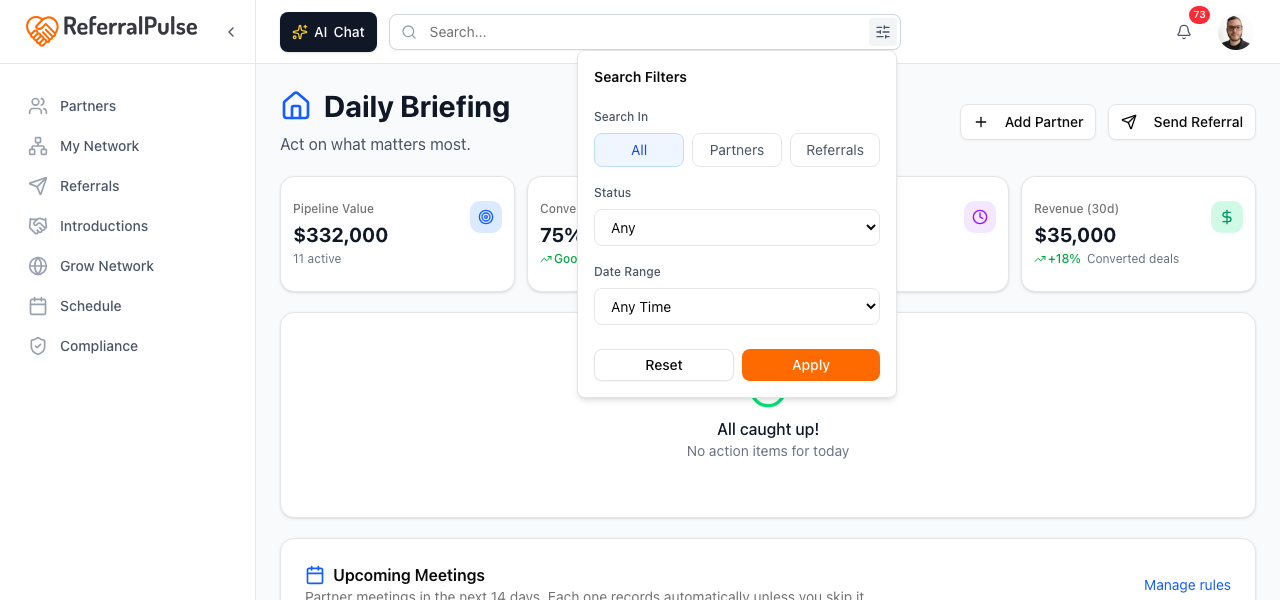
The filter sticks until you clear it, even if you close the dropdown and reopen the search. The slider icon turns blue when a filter other than All is active so you don't forget you've narrowed the results.
If you can't find a partner you know exists, check that the filter isn't accidentally set to Referrals. The blue slider icon is the giveaway.
What you will see
Results are ranked by how closely the text matches what you typed. Exact matches on name or email come first, then partial matches on company. If nothing matches, the dropdown says No results found and suggests adjusting your search.
Clicking a partner row opens that partner's detail page. Clicking a referral row opens that referral. Either way, your search input clears and the dropdown closes, so you're ready to search again from wherever you land.
On the iOS app
Where to find it: Bottom navigation → Chat tab. Or tap the magnifying glass in the header.
On iOS the assistant is usually faster than typing into the search bar. Open the Chat tab and ask:
Show me Sarah Chen.
The assistant pulls Sarah's record up directly. You can also ask things the search bar can't answer, like "Which partners haven't I talked to in two months?" or "Show me referrals to Jordan that are still open." The assistant runs that as a query against your data and returns a list with links.
If you'd rather use the typing search, the magnifying glass in the header opens the same overlay you see on desktop, scaled to fit a phone screen.
When you can't remember the exact spelling of a name, voice search beats typing because the assistant handles fuzzy matches. Saying "Find me Catherine, I think it starts with a C or K" is enough.