What your partner sees after you send an invite
When you click Invite to Connect on a partner, they get an email and a link. From there, two paths open up. They can fill in their profile and stop there, or they can create a full ReferralPulse account. Both are valid endings. This article walks through what they see at each step so you know what you're asking them to do.
The email they receive
The invitation arrives as a plain-text email written to read like a personal note from you, not a marketing broadcast. Subject line:
[Your name] wants to send you better referrals
Body, in your voice:
Could you take a couple minutes to fill out a quick profile? It just asks about your service areas, ideal client, and contact preferences so I'm only sending you leads that actually match what you do.
The email has one link, labeled Complete Your Profile. The footer notes that the link is good for 90 days and that creating an account is optional.
If you wrote a personal message when sending the invite, that message appears at the top of the email above the standard text.
The personal message field is the highest-leverage part of the invite. A line like "I have a client who could really use someone with your tax expertise" turns a generic invite into a real-feeling ask. Even one sentence makes a noticeable difference in completion rates.
The page they land on
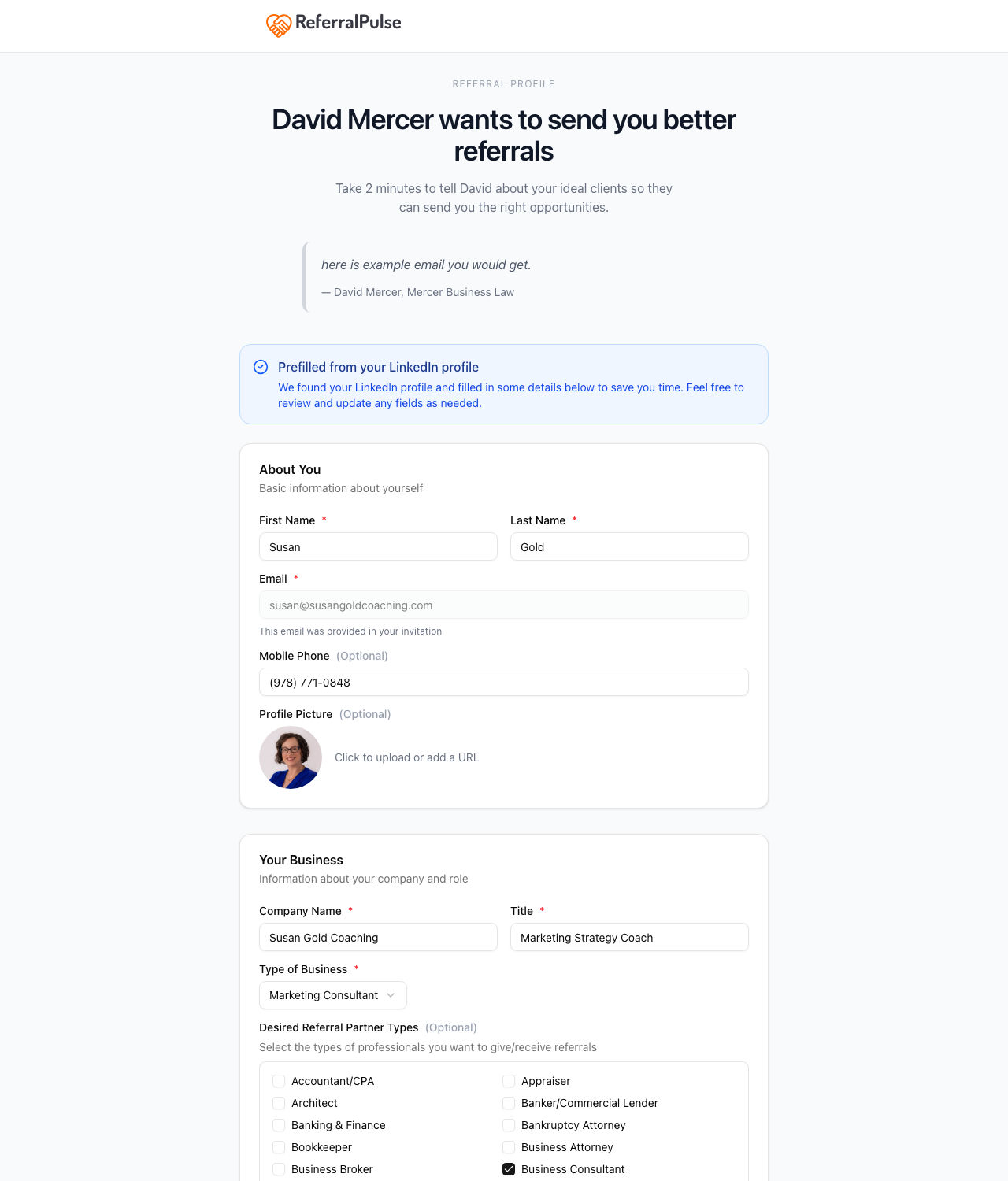
The link opens a single-page form. The header reads [Your name] wants to send you better referrals so they immediately know who's asking and why. If you included a personal note, it appears in a quoted block right under the header.
The form has two main sections:
- About You with first name, last name, email (locked, set from your invite), mobile phone, and profile photo.
- Your Business with company, title, type of business, desired partner types, and location.
Below that are deeper fields the partner can fill in if they want, ideal customer, service areas, expertise, languages, industries served, and so on. None of these are required.
The LinkedIn shortcut
If you supplied a LinkedIn URL when adding the partner to your network, the landing page shows a Take a Shortcut block at the top with a Fill My Profile button. Clicking it pulls bio, headline, expertise, company, location, and a handful of other fields straight from the partner's LinkedIn profile and fills the form for them. They review what came in, fix anything wrong, and submit. Often takes thirty seconds total.
Without LinkedIn, the form is a five-minute ask. With it, it's a thirty-second ask.
The LinkedIn shortcut only appears if you saved a LinkedIn URL on the partner record before sending the invite. If you skip the LinkedIn URL when adding a partner, you can come back later, paste it on their detail page, and resend the invite to give them the shortcut.
The success screen and the two paths
When the partner submits the form, they land on a green-checkmark Profile Completed screen. Two buttons sit side by side:
- Create Your Account (blue, primary)
- Done (outline, secondary)
This is the moment the two paths diverge. Both are real options.
Path A: Profile-only (they click Done)
They keep their profile updates, you get the data, and they walk away without an account.
What they get:
- Nothing. No login, no dashboard, no voice assistant, no in-app visibility into anything you've logged about them. Their submission was a data hand-off.
What you get:
- Their full profile data on their partner detail page on your side. The badge on their row in your Partners list flips from yellow Invited to blue Profile Updated.
- Sharper recommendations from your assistant. The fields they filled in (their type of business, ideal customer, expertise, desired partner types) sharpen who the assistant suggests for introductions, who it flags as a gap in your network, and what referrals it considers a good fit.
Path A is a perfectly valid place to stop. A lot of partners pick it the first time. They get the email, fill in the profile, click Done, and you have everything you need to keep referring well to them. They never log in.
Path B: Full account (they click Create Your Account)
They become a registered ReferralPulse user with their own dashboard, and the bilateral sync described in What changes when a partner has their own ReferralPulse account turns on.
The Create Your Account button takes them to a signup page with the email pre-filled and locked (so they have to use the same email you invited). Once they pick a password and finish onboarding, three things happen:
- All the profile data they just filled in carries over into their own account. No retyping.
- The disabled Registered User label appears on the invite button on your partner detail page in place of Invite to Connect.
- Future referrals you log to or from them auto-mirror to their account, and statuses sync between the two of you.
They can come back to a full account later
The success screen's two buttons are not a one-time decision. The profile data they submitted via Path A is kept indefinitely, even if they click Done at first.
If a partner picks Path A today and decides three months from now that they want a full account, they can sign up at referralpulse.ai with the same email address they used in your invite. The new account automatically links to the profile they already filled in, the data carries over, and your view of them flips to Registered User without you having to do anything.
So Path A is never a dead end. It's a partial step that they can complete later, on their own time, with no help from you.
If you want to nudge a partner who's been at Profile Updated for a while, the partner detail page on your side has a Re-invite to Connect button. The re-invite email is a softer ask since they've already filled in the profile. The body suggests they create an account to manage their own connections, but it doesn't pressure.
What if the link expires
The invite link is good for 90 days from when you send it. If a partner clicks it after that, they see an expired-link page with a short message saying the link is no longer valid. They can ask you for a new one. Re-sending an invite from your side creates a fresh link with a fresh 90 days.
The profile data, if they had filled it in before expiry, is still on their record. Expiry only affects the link, not the data they already submitted.
Get more out of your assistant
The single highest-impact field your partner fills in on the invite form is Desired Referral Partner Types, the checkbox grid that asks who they want to receive referrals from. The form picks a sensible starter set based on the type of business they entered, but the partner can adjust it to match how they actually want to receive work.
When that field is accurate, every recommendation the assistant makes about that partner is sharper. Suggested intros, gap-finding, dormant-partner reminders, all of these depend on knowing who this partner wants to hear about. So if you're trying to get the most out of an invite, that's the field worth nudging the partner to confirm.
If a partner came back with a sparse profile (just the required fields), you can fill in the rest from your side later. Open their partner detail page and edit the fields directly. The data you add stays on your view and doesn't override anything they submitted.
On the iOS app
Where to find it: The invite link in the email opens in the partner's mobile browser, not in the iOS app, even if the iOS app is installed.
The landing page is responsive, so it works on a phone. Both paths (profile-only and full account) work end to end on mobile. Once a partner finishes Path B and creates an account, they can install the iOS app and sign in with the same email and password.
Most partners read the invite email on their phone. If you're picking a moment to send invites, mid-morning works well, the email is more likely to be read on a coffee break than ignored at 6am with the rest of the inbox.